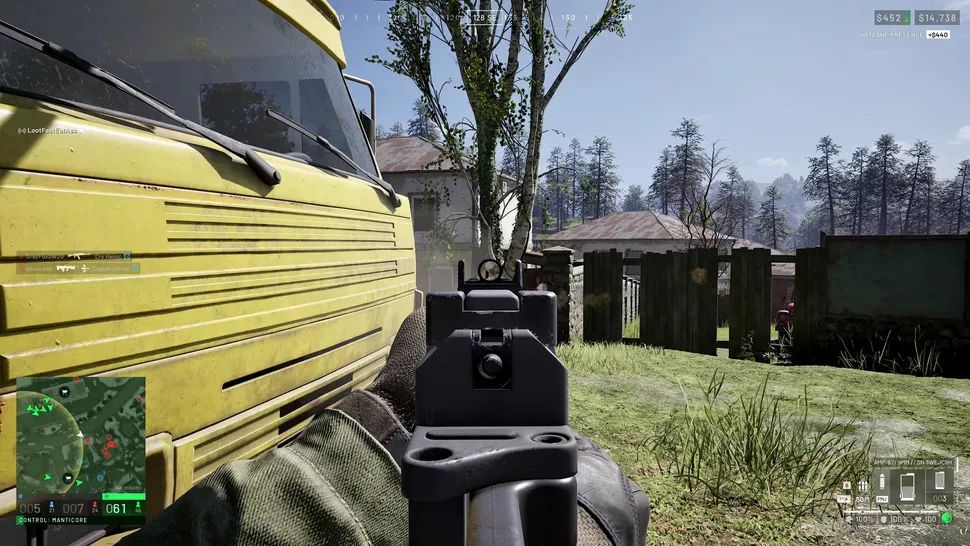
You’ve loaded into the combat zone. Heli rotors thump overhead. A squadmate calls out an enemy position. But you hear nothing — not a single footstep, not the crack of a rifle. Audio in WARDOGS can fail silently, leaving you deaf to every critical cue. It’s frustrating, especially when VoIP and environmental sound are the difference between life and a respawn screen.
We’ll walk through the fixes that actually work. Each step is drawn from real player reports and tested solutions. No fluff. Just specific, repeatable steps.
Fix 1: Toggle Windows Spatial Sound (The Most Common Culprit)
Windows spatial sound processing can clash with WARDOGS’ own audio engine. The result? Complete silence.
- Press Windows key + I to open Settings.
- Go to System > Sound.
- Scroll down and click More sound settings (under Advanced).
- Right‑click your default playback device (e.g., Speakers or Headphones) and select Properties.
- Click the Spatial sound tab.
- From the drop‑down menu, select Off. Click Apply, then OK.
- Launch WARDOGS and test.
If sound is still missing, go back to the same panel and this time select Windows Sonic for Headphones. Some players report that toggling from Off to Sonic and back again forces Windows to re‑initialize the audio pipeline. Retest after each change.
Why this works: Spatial sound add‑ons like Dolby Atmos or DTS: X inject an extra audio layer that can block Unreal Engine 5’s audio system from binding to the correct device. Disabling them removes that conflict.
Fix 2: Disable Bluetooth Hands‑Free Telephony (For Wireless Headphones)
Bluetooth headphones often register two separate audio profiles: one for high‑quality stereo (A2DP) and one for voice calls (HFP). WARDOGS may mistakenly send game audio to the low‑quality hands‑free channel, producing silence or crackling.
- Right‑click the Bluetooth icon in the system tray (bottom‑right).
- Select Show Bluetooth devices.
- Scroll to the bottom and click More devices and printer settings.
- Right‑click your headphones, choose Properties.
- Go to the Services tab.
- Uncheck Hands‑free Telephony.
- Click Apply and OK.
- Restart WARDOGS.
What this does: It forces Windows to use only the high‑fidelity stereo profile for all game audio. You’ll still be able to use a separate microphone — just not through the Bluetooth headset’s hands‑free channel.
Fix 3: Reset In‑Game Audio to 100% and Disconnect Extra Peripherals
Sometimes the volume sliders inside WARDOGS get stuck at zero after a crash or a settings file corruption.
- Launch WARDOGS and go to Settings > Audio.
- Make sure every volume bar (Master, Effects, Voice, Music) is set to 100%.
- If you use headphones, unplug them and test with speakers. If you use speakers, plug in headphones. This forces the game to re‑enumerate audio devices.
While you’re at it, disconnect any USB peripherals that aren’t essential — external cameras, USB hubs, game controllers with audio jacks. I’ve seen a Logitech C920 webcam’s built‑in microphone steal the default audio device. Unplugging it restored game sound immediately.
Fix 4: Set the Correct Default Device and Update Audio Drivers
Windows sometimes picks the wrong audio endpoint, especially after a Windows update.
- Click the speaker icon in the system tray.
- Click the device name above the volume slider.
- Manually select the headset or speakers you want WARDOGS to use.
- Restart the game.
Still broken? Update your audio drivers from the device manager.
- Right‑click the Start button and select Device Manager.
- Expand Sound, video and game controllers.
- Right‑click your audio device (e.g., Realtek Audio, NVIDIA High Definition Audio) and choose Update driver.
- Select Search automatically for drivers.
- Restart your PC after the update.
I’ve also seen success with a clean driver reinstall: download the latest driver from your motherboard or laptop manufacturer’s site, uninstall the current driver in Device Manager, then run the new installer.
Audio Fix Scenarios – Which Step Works Where?
| Your Situation | Best First Step | Backup Step |
|---|---|---|
| Bluetooth headphones – no game sound | Disable Hands‑free Telephony (Fix 2) | Toggle Spatial Sound (Fix 1) |
| Wired headphones or speakers – total silence | Reset Spatial Sound to Off (Fix 1) | Set in‑game volume to 100% (Fix 3) |
| Sound works in menus but cuts out during gameplay | Turn off Windows Sonic, then enable it again (Fix 1) | Check for Windows Update KB5121003 (see Fix 6) |
| Crackling or distorted audio | Update audio driver (Fix 4) | Disconnect all USB peripherals except keyboard/mouse (Fix 3) |
Fix 5: Resync Windows Clock and Run SFC Scan
A misaligned system clock can break online authentication and — oddly — cause audio services to stall.
- Right‑click the clock on the taskbar, select Adjust date/time.
- Toggle Set time automatically off, then back on.
- Click Sync now.
- Wait for the checkmark, then close.
Next, run a system file scan:
- Press Windows key + S, type cmd, right‑click Command Prompt, and choose Run as administrator.
- Type
sfc /scannowcodecodecodecodecode and press Enter. - Let it reach 100%. It will replace corrupted Windows files if any are found.
- Restart your PC.
Fix 6: Update Windows or Uninstall Recent Patches (Last Resort)
One specific Windows update – KB5121003 – has caused audio and anti‑cheat issues in WARDOGS, especially on Windows Insider Preview builds.

- Open Settings > Windows Update > Update history > Uninstall updates.
- Look for KB5121003. If present, select it and click Uninstall.
- Restart your PC and test WARDOGS.
If you’re running a Windows Insider build (check with winvercodecodecodecodecode in the Run dialog), consider reverting to the public release. Many players on Insider builds have reported audio failures that vanished after switching to the stable channel.
One more thing: The same update has also triggered blue‑screen crashes linked to kernel‑level RGB processes like inputx64.syscodecodecodecodecode. If you’re getting BSODs and audio problems, check your Event Viewer for that driver and disable it via the command line:
“`
sc stop inputx64
sc config inputx64 start= disabled
“`
Then restart your PC.
WARDOGS is still early in its life, and audio bugs often get patched within a week of a major Windows update. If these six fixes don’t solve your problem, check the game’s official Discord and the Steam community hub — players there frequently post driver version numbers and audio device specs that worked for their exact hardware combination. The solution is often one search away.