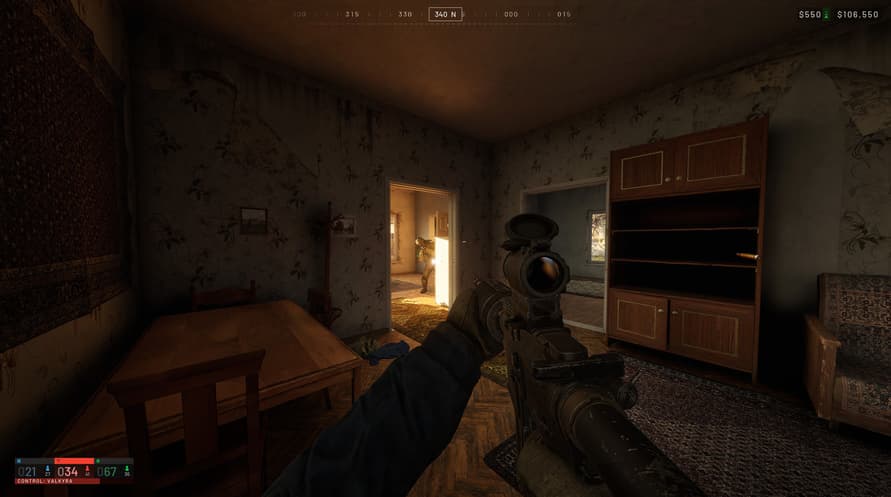
The launch of WARDOGS has brought a familiar problem with it: players are hitting crashes, stutters, and frame drops within minutes of booting up. The closed beta reports were bad enough, with one player documenting crashes every few seconds even while sitting in the matchmaking queue. But the performance picture is more complicated than a simple “your GPU isn’t strong enough” diagnosis. The game has a kernel-level anti-cheat that is colliding with Windows security updates, and the result is a mess of blue screens and sudden restarts that have nothing to do with your hardware specs.
Let’s be direct about what you need to know. The game’s GPU requirements are modest by 2025 standards, but the crash issues are often software-related rather than hardware-related. A Windows security update released on August 12th has been identified as a direct cause of kernel-level conflicts with the game’s anti-cheat. The fix involves disabling a specific process called input x64.sys, which is an RGB control process that auto-starts with Windows. That single change took one player from crashing every few seconds to playing 24 to 26 hours without a single crash.
The Real WARDOGS Problem Isn’t Your GPU
Most performance guides start with graphics settings. That’s the wrong place to start with WARDOGS. The game’s most common failure mode isn’t low FPS; it’s a hard crash that restarts your entire PC. That points to a kernel-level conflict, not a rendering bottleneck.
The specific culprit is a Windows security update from August 12th that interferes with the game’s anti-cheat. The crash signature shows up in Event Viewer under Windows Logs > System, marked with a red exclamation point. In documented cases, the responsible process is input x64.sys, a kernel driver associated with RGB lighting control. The same issue appeared in The Finals, another game using kernel-level anti-cheat, and that game’s developers recommended deleting the process entirely.
You don’t need to delete it. Disabling it through two command prompt commands achieves the same result without removing the file. Run Command Prompt as administrator, execute the two commands to stop the process and prevent it from auto-starting, then restart your PC. Check the process status afterward; it should read “stopped.” One player who followed this exact procedure went from crashes every few seconds to 24-26 hours of uninterrupted playtime in the latest build.

How to Check Event Viewer for the Crash Cause
Open Event Viewer immediately after a crash, even if your PC restarts. The red exclamation mark persists across restarts, so you can check even after the system comes back up. Look under Windows Logs > System. The entry will name the faulting process. If it shows input x64.sys or any similar kernel driver, the Windows update conflict is your problem. Yellow warnings aren’t relevant here; only the red error entries identify the crash cause.
Graphics Drivers: The September 9th Release Matters
Nvidia shipped a Game Ready driver on September 9th, one day before WARDOGS released. If you haven’t installed it, that’s your first step. The driver addresses game-specific stability issues, and skipping it leaves known bugs in place.
For Nvidia users, the clean installation path is straightforward: download the latest GeForce Game Ready driver from Nvidia’s website, select your GPU model and operating system, then run the installer. Choose the custom installation option and check the box for “perform a clean installation.” This removes all previous driver remnants, which can cause conflicts if you’ve upgraded GPUs or switched between driver branches. Restart your PC after the clean install completes.
AMD users should follow the same process through AMD’s website. The specific driver version will differ, but the clean installation principle applies equally. Old driver files left behind by partial uninstalls are a common source of stability issues in games that stress kernel-level components.
Windows Settings That Actually Save Performance
Three Windows settings have a measurable impact on WARDOGS performance, and none of them require third-party software.
Disable transparency effects under Personalization > Colors. This removes unnecessary animations from the Windows UI, freeing a small but consistent amount of system resources. It won’t transform your FPS, but it removes background overhead that compounds during extended play sessions.
Turn off the Game Bar entirely under Settings > Gaming > Game Bar. The Game Bar is an overlay service that runs in the background whether you use it or not. Most players never open it, yet it consumes system resources continuously. Disabling it eliminates that overhead.
Enable Game Mode under Settings > Gaming > Game Mode. Unlike the Game Bar, Game Mode actually helps. It optimizes your PC by suspending background processes during gameplay, freeing resources for the game. The contrast is worth noting: one gaming feature wastes resources, the other saves them.
BIOS Updates and Windows Updates: The Overlooked Fixes
Outdated BIOS firmware causes stability issues that no driver update can solve. Check your system manufacturer’s website, select your model number, and install the latest BIOS version. Laptop users must ensure the battery is charged and the AC adapter is connected before updating. A failed BIOS update with a dead battery is a bricked motherboard, not a fixable software issue.
Windows updates are equally critical, but they come with a warning. Install all pending updates through Windows Update, restart your PC, then test the game. If the game crashes after a fresh update, the August 12th security update may be the cause. You can uninstall recent updates through Windows Update > Update History > Uninstall Updates. Remove the problematic update, restart, and test again.

This creates a frustrating loop: you need Windows updates for general stability, but a specific update breaks WARDOGS. The command prompt fix for input x64.sys resolves this conflict without requiring you to choose between security patches and game stability.
The Complete WARDOGS Troubleshooting Checklist
Follow these steps in order. Each one addresses a different failure point, and skipping steps means you might waste time on a fix that doesn’t match your specific issue.
- Install the September 9th Nvidia Game Ready driver (or the latest AMD equivalent) using a clean installation, then restart your PC.
- Run the game in Windows 8 compatibility mode by right-clicking the launcher, selecting Properties > Compatibility, and checking “Run this program in compatibility mode for Windows 8.” Apply the setting, then run the launcher as administrator.
- Verify game file integrity through Steam: right-click WARDOGS, select Properties > Installed Files > Verify Integrity of Game Files. This finds corrupted or misplaced files from the installation process.
- Disable input x64.sys through Command Prompt commands if crashes persist. Check Event Viewer first to confirm this is the crash cause.
- Disable transparency effects, turn off the Game Bar, and enable Game Mode in Windows settings. Restart your PC after making these changes.
- Update your BIOS from the system manufacturer’s website, ensuring power is stable during the update.
- Install all pending Windows updates, then restart. If crashes begin after a specific update, uninstall that update through Windows Update history.
- If all else fails, uninstall WARDOGS completely and reinstall it on a different drive. Moving the game to another storage device has resolved persistent issues in the past, though it’s not guaranteed to work.
After every step, restart your computer. The restart ensures the changes take full effect. Skipping restarts is the most common reason troubleshooting steps appear to fail when they actually worked.
What the Crash Data Tells Us
The documented crash pattern in WARDOGS is unusual because it doesn’t follow hardware stress patterns. Players crash in the firing range, in the queue, and even in menus. That’s not a GPU load issue; that’s a software conflict. The August 12th Windows update is the common denominator in documented cases, and the input x64.sys process is the specific crash point.
The same pattern appeared in The Finals, which uses similar kernel-level anti-cheat. That game’s developers recommended deleting the process entirely, but disabling it achieves the same result without the risk. The command prompt approach stops the process and prevents it from auto-starting, which is sufficient to eliminate the crashes.
One player’s experience after disabling the process: zero crashes across 24-26 hours of playtime. Before the fix, the game crashed every few seconds, even outside active gameplay. That’s the difference between an unplayable game and a stable one, and it has nothing to do with graphics settings or hardware specifications.
WARDOGS is not a demanding game by current standards, and most mid-range PCs from the last three years can handle it at acceptable frame rates. The performance issues players are reporting are overwhelmingly software conflicts, not hardware limitations. The kernel-level anti-cheat system is doing its job, but it’s colliding with Windows security patches in ways the developers didn’t anticipate. The fix is available, documented, and repeatable, but it requires going beyond the standard graphics settings advice.