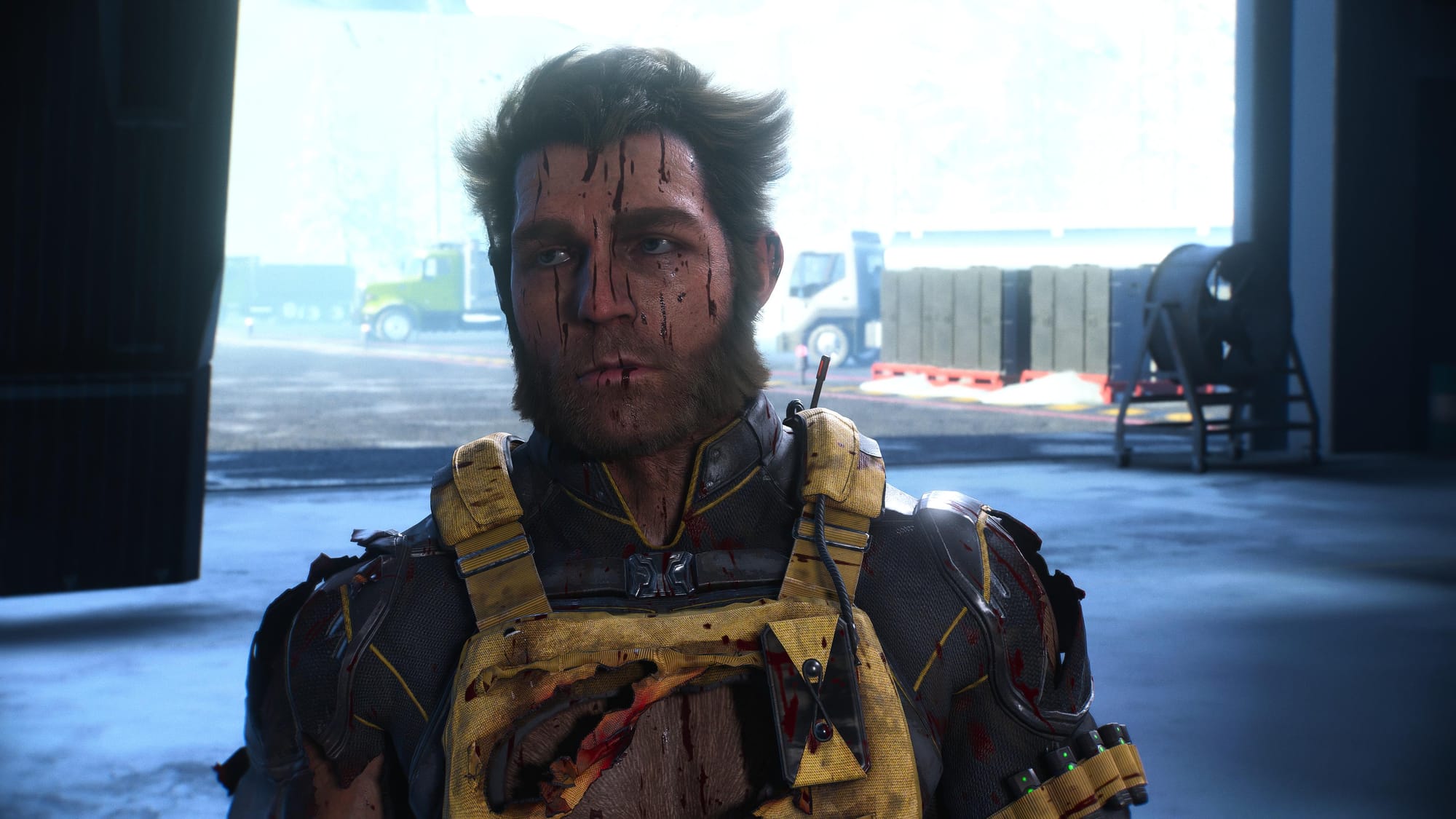
Control Resonant’s New York is a visual feast. It’s also a performance nightmare if your GPU is anything older than an RTX 3070. The game’s dense cityscapes, constant particle effects, and ray-traced reflections demand more than most mid-range rigs can deliver. But you don’t need to drop to low settings and play on a blurry mess. The difference between a slideshow and a smooth 60 FPS comes down to five specific options. Here’s exactly where to spend your performance budget.
The One Setting That Matters Most: Ray Tracing
Ray tracing is the single largest drain on frame rate. On an RTX 2060, enabling ray tracing at ultra drops you to the mid-30s in the West Incursion Zone combat area. Switching it to high brings you to 45-50 FPS. That’s still not ideal. For a stable 60, disable ray tracing entirely. The game’s baked reflections and dynamic lighting handle most scenes well enough that you won’t miss the ray-traced version during fast combat. If you have a 3060 Ti or better, ray tracing at high is viable at 1080p. Anything weaker: turn it off.
The difference between a slideshow and a smooth 60 FPS comes down to five specific options.
High vs. Ultra: What Actually Changes
Remedy’s art direction carries the game. The surreal architecture and volumetric lighting look nearly identical on high and ultra presets. On a GTX 1660 Super, dropping from ultra to high yields roughly a 25% frame rate improvement. The visual loss is almost invisible during gameplay. Ultra textures use more VRAM but show no visible difference at typical viewing distances. On a card with 6 GB or less, ultra textures cause stuttering when loading new areas. Set texture quality to high and leave it there.
Specific Settings to Drop
- Shadow Quality: Ultra shadows cost 8-10 FPS over high on an RTX 2070. The difference in shadow sharpness is negligible during combat. Set to high.
- Volumetric Fog: This setting hits performance hard in the Park and Evacuation Zone. Drop it to medium. The fog density remains atmospheric, but the GPU load drops by 15%.
- Post-Processing: Bloom, motion blur, and depth of field are expensive. Turn motion blur off entirely. Set bloom and depth of field to medium. You lose some cinematic feel but gain 5-8 FPS.
- Ambient Occlusion: Keep at high or medium. SSAO (screen space) costs less than HBAO+. On an RX 580, choose SSAO for a 10% boost.
Additional Tweaks for Stable 60 FPS
- Resolution Scaling: If you’re on a GTX 1060 or RX 580, run at 75%-80% resolution scale instead of lowering every other setting. The image stays sharp enough, and combat retains readability. Aim for 60 FPS in the busiest scenes (like the Factory Resident boss fight).
- V-Sync: Turn it off. Use the in-game frame cap set to 60 or 75. V-Sync adds input lag that hurts the dodge-heavy combat.
- Fullscreen vs. Borderless: Use exclusive fullscreen. Borderless windowed costs 3-5 FPS on most systems.
- DLSS/FSR: Both are available. DLSS Quality mode on an RTX card gives you back 20-25% FPS with almost no visual penalty. FSR Quality on AMD cards is similar but may show slight shimmering on thin objects. Enable either if your GPU supports it.
Why You Should Ignore Ultra Textures
Ultra textures need 8 GB VRAM for consistent performance. On a 6 GB card (GTX 1660 Ti, RTX 2060), they cause intermittent hitches when the game streams in new areas. The same city walls and road surfaces look identical on high. The only place ultra matters is the pause screen menu where you can see Dylan’s weapon details. During combat, you won’t notice. Save your VRAM.
Test Your Settings in Combat, Not the Menu
Control Resonant does not include a built-in benchmark. The menu screen runs at double the frame rate of actual gameplay. Always test by running through a known combat zone—the Central Plaza with multiple Hiss enemies is reliable. Use the in-game performance overlay if available. Adjust one setting at a time and check the result in that same location. A 5 FPS gain in the menu might be a 15 FPS loss in the Evacuation Zone.

The game is demanding, but it’s also forgiving if you pick the right compromises. Turn off ray tracing, set shadows and fog to medium, enable DLSS or FSR, and keep textures on high. That combination should get you a stable 60 FPS on any GPU from the GTX 1660 era onward. Once future driver updates land, you might be able to bump one or two settings back up—but for now, these are the settings that deliver the most frames per visual impact.

/i.s3.glbimg.com/v1/AUTH_08fbf48bc0524877943fe86e43087e7a/internal_photos/bs/2026/Y/y/eloBAuRYqsg3YH6XQqQQ/imagem-2026-09-10-200407901.png "WARDOGS Early Access: Why “Just Wait for Full Release”")