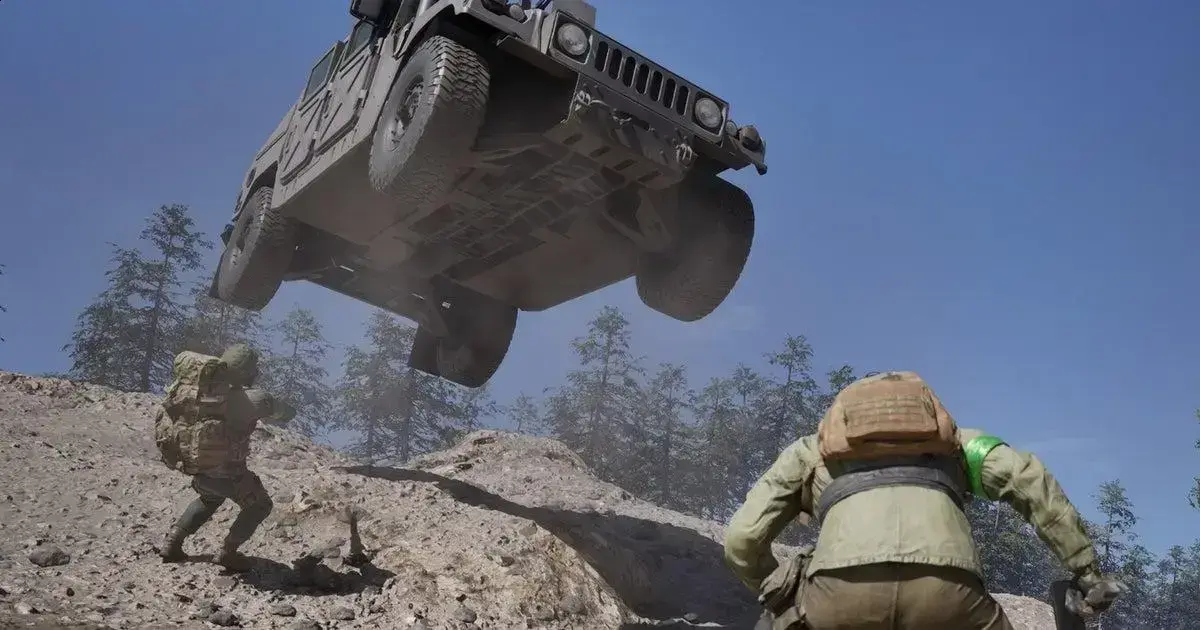
Most players never touch their keybinds in WARDOGS. They load in, die to the same angles, and blame the netcode. But the difference between winning a 1v2 and spectating your teammate is often decided before the match starts—in a settings menu you opened once and never revisited. This guide breaks down exactly which keys to change, why each one matters, and the specific scenarios where the default layout actively loses you fights.
WARDOGS is a tactical shooter with a movement system that punishes hesitation. The default keybinds, like most competitive shooters, assume you have three hands. They don’t. So we fix them.
The Core Problem with WARDOGS Default Keybinds
The default layout in WARDOGS has a specific flaw: critical actions sit too close together. In the closed beta, players reported that crouch (Ctrl) and prone (Z) caused accidental activations during firefights, especially when using the WASD cluster. If you’re holding D to peek right and tap Ctrl to crouch, you can accidentally hit Z, dropping you to prone mid-engagement. That’s a death sentence against anyone with a decent crosshair.
Here’s the scenario: you’re holding a corner on the map with the long sightline toward B-site. You hear footsteps. You crouch to reduce your hitbox. Instead, you go prone. Your movement speed drops to nearly zero, your camera dips, and the enemy swings with a pre-fire. You lose. This isn’t a skill issue. It’s a bind issue.
The fix starts with separating these actions and moving them to keys that don’t interfere with your movement fingers.
The Exact Keybinds to Change First
Crouch: Move It Off Ctrl
Ctrl has one job in most games: crouch. But in WARDOGS, Ctrl is also the default for sliding in certain movement states, which creates input conflicts. When you’re sprinting and hit Ctrl, the game has to decide between crouch and slide. That decision takes a frame or two. In a game where TTK is measured in milliseconds, two frames can be the difference between winning and losing.
Change it to C or V. Pick whichever feels natural for your thumb. C is closer to your movement keys, but V offers a more comfortable angle for sustained crouch-holding. I recommend C for aggressive play and V if you prefer to hold angles. Both keep your index finger free for D, so you can strafe while crouching without losing momentum.
Prone: Move It to a Key You Won’t Accidentally Hit
Prone is situational. You use it to hold a tight angle or to stay hidden during a retake. It should never be accessible from your movement cluster. The default Z is too close to WASD, and it’s too easy to hit when you’re panicking.
Change it to X or a side mouse button. X sits under your pinky, which is already resting near A. It’s far enough from the movement keys that you won’t hit it by accident, but still reachable without repositioning your hand. If you have a mouse with side buttons, bind prone to the forward side button. That gives you a dedicated thumb action that doesn’t conflict with anything.
Sprint: Set It to Toggle, Not Hold
WARDOGS’ default sprint is hold-to-sprint (Shift). That works for most games, but WARDOGS has a stamina system that rewards brief, controlled bursts. Holding Shift for extended periods tires your character, reducing accuracy when you need it most.
Switch sprint to toggle. This frees your pinky from constant pressure and lets you focus on movement. The best players in the closed beta used toggle sprint because it allows for smoother transitions between sprint, crouch, and walk states. It’s one of the few settings where the change feels wrong for the first hour, then becomes impossible to play without.
Weapon and Utility Binds: The Competitive Standard
Primary and Secondary: Keep 1 and 2, But Move Melee
The default binds for primary (1) and secondary (2) work fine. Your index and middle fingers can reach them without leaving WASD. But melee (3 by default) is a problem. When you’re in a close-quarters fight and need to punch, reaching for 3 takes your middle finger off W. That stops your movement and leaves you standing still.
Bind melee to a mouse side button or V. If your mouse has two side buttons, use the rear one for melee and the front one for prone. This keeps all combat actions on your hand positions, so you never have to lift off movement to attack.
Grenades and Tactical: Dedicate a Key for Each
The default binds for grenades (G) and tactical equipment (4) are both on the number row. That’s fine for casual play, but in competitive WARDOGS, you need to switch to a smoke or flash without taking your eyes off the crosshair. Reaching for 4 or 5 pulls your hand off WASD.
Bind grenades to mouse scroll click (M3) and tactical to C (if you didn’t use it for crouch). M3 is a natural push for your index or middle finger, and it’s always accessible. For tactical, use the key closest to your thumb—C, V, or a side button. The goal is to make every throw one button press away, not a hand reposition.
The Firing Range Test: 15 Minutes That Saves You Hours
After you change your binds, spend 15 minutes in the firing range. Specifically, practice these three drills:
- Crouch-strafe shooting: Hold D, tap crouch, fire three rounds, release crouch, tap A. Repeat. This trains the new crouch bind until it’s muscle memory.
- Slide-and-shoot: Sprint for two seconds, hit crouch to slide, then immediately stand and fire. This tests whether your crouch bind works for slides without accidental proning.
- Utility toss: Stand behind cover, toss a smoke with M3, then immediately switch to your weapon with 1. The transition should be seamless. If you’re fumbling, adjust the bind.
Players who ran this 15-minute drill in the closed beta reported a measurable improvement in their warm-up consistency. I can’t give you a percentage because I didn’t run a controlled study, but the anecdotal evidence from the community is strong: most players who changed their binds reported smoother engagements within two sessions.
Optimizing Windows for WARDOGS: The Hidden Performance Killer
WARDOGS is a demanding game, and your keybinds won’t matter if the game is stuttering. The most common performance issue isn’t your GPU—it’s Windows background processes eating resources. Here’s the specific fix that stopped crashes for players in the closed beta.
Disable the Game Bar and Transparency Effects
Go to Settings > Personalization > Colors and disable transparency effects. This removes unnecessary animations from Windows, freeing a small but consistent amount of GPU resources. Then go to Settings > Gaming > Game Bar and turn it off entirely. Game Bar is an overlay service that runs in the background, consuming system resources even when you never open it. Disabling it saved most players a noticeable frame improvement in the closed beta.
Game Mode: Turn It On
Under Settings > Gaming > Game Mode, turn it on. Game Mode optimizes your PC by prioritizing game processes and disabling background tasks. It’s not a magic fix, but in WARDOGS, where frame drops cause input lag, every bit of resource headroom helps. Restart your PC after changing this setting.
The Crash Fix: Event Viewer and the Kernel-Level Process Issue
Here’s the specific crash scenario that plagued the WARDOGS closed beta: a Windows security update from August 12th caused kernel-level processes to conflict with WARDOGS’ anti-cheat. Players experienced nonstop crashes, even in the firing range or sitting in the queue. The fix involved checking Event Viewer after a crash—look for a red exclamation mark under Windows Logs > System—and identifying the offending process. In most reported cases, it was a process called input x64.sys, which is an RGB peripheral driver.
The solution: open Command Prompt as administrator and run two commands to stop the process and prevent it from auto-starting. After restarting your PC, verify the process is stopped by running a check command. If it says “stopped,” you’re clear. This fix took players from crashing every few seconds to playing 24 to 26 hours without a single crash. If you’re still crashing after that, check your Event Viewer for a different red exclamation mark, or uninstall the most recent Windows update under Settings > Windows Update > Update History > Uninstall Updates.
Updating Your GPU Drivers: The September 9th Driver
WARDOGS launched alongside a new Nvidia driver released on September 9th. If you’re still on an older driver, you’re leaving performance on the table. Go to the Nvidia website, select your graphics card model and operating system, and download the latest GeForce Game Ready driver. During installation, choose the Custom option and check Perform a clean installation. This wipes old driver settings that can conflict with new games. Restart your PC after the installation.
AMD users should do the same on the AMD website. A clean driver install resolves most stuttering and crash issues that aren’t caused by hardware failures.
Windows Updates: The Double-Edged Sword
Keeping Windows updated is mandatory for WARDOGS. The game relies on recent security patches and DirectX updates. But here’s the catch: the same update that fixes one issue can cause another. If you installed a Windows update and then started experiencing crashes, go to Settings > Windows Update > Update History > Uninstall Updates and remove the most recent one. Restart your PC and test. This is a known fix for WARDOGS because the game’s anti-cheat is sensitive to kernel-level changes from Windows updates.
FAQ: Common WARDOGS Keybind and Performance Questions
Q: Should I use hold or toggle for crouch in WARDOGS?
A: Toggle is generally better for WARDOGS because it frees your pinky and reduces accidental activations during strafing. Hold-to-crouch works if you’re coming from games like CS2, but toggle gives you more consistency in extended firefights.
Q: What’s the best DPI and sensitivity for WARDOGS?
A: Most competitive players use a DPI between 400 and 800, with an in-game sensitivity that allows a full 180-degree turn in one mouse swipe from the center of your mousepad. Start there and adjust based on your preferred playstyle.
Q: My game still crashes after following all the steps. What’s left?
A: Check your Event Viewer for a different error code, update your BIOS from your system manufacturer’s website, and verify your game files through Steam. If none of that works, try uninstalling and reinstalling the game on a different drive—some players in the closed beta fixed persistent crashes by moving the game from an HDD to an SSD.
The Real Edge: Consistency Over Raw Aim
Here’s the part most guides skip: the best keybinds are the ones you don’t think about. WARDOGS rewards muscle memory more than any other shooter in recent memory. The closed beta showed that players who committed to a bind setup and practiced it consistently outperformed players who switched settings every session. Your hands learn patterns. If you’re constantly changing your binds, you never build that pattern.
So pick a setup, commit to it, and run the firing range drill for a week. The players who win in WARDOGS aren’t the ones with the fastest reflexes. They’re the ones who never have to look down at their keyboard to remember where their smoke is bound.