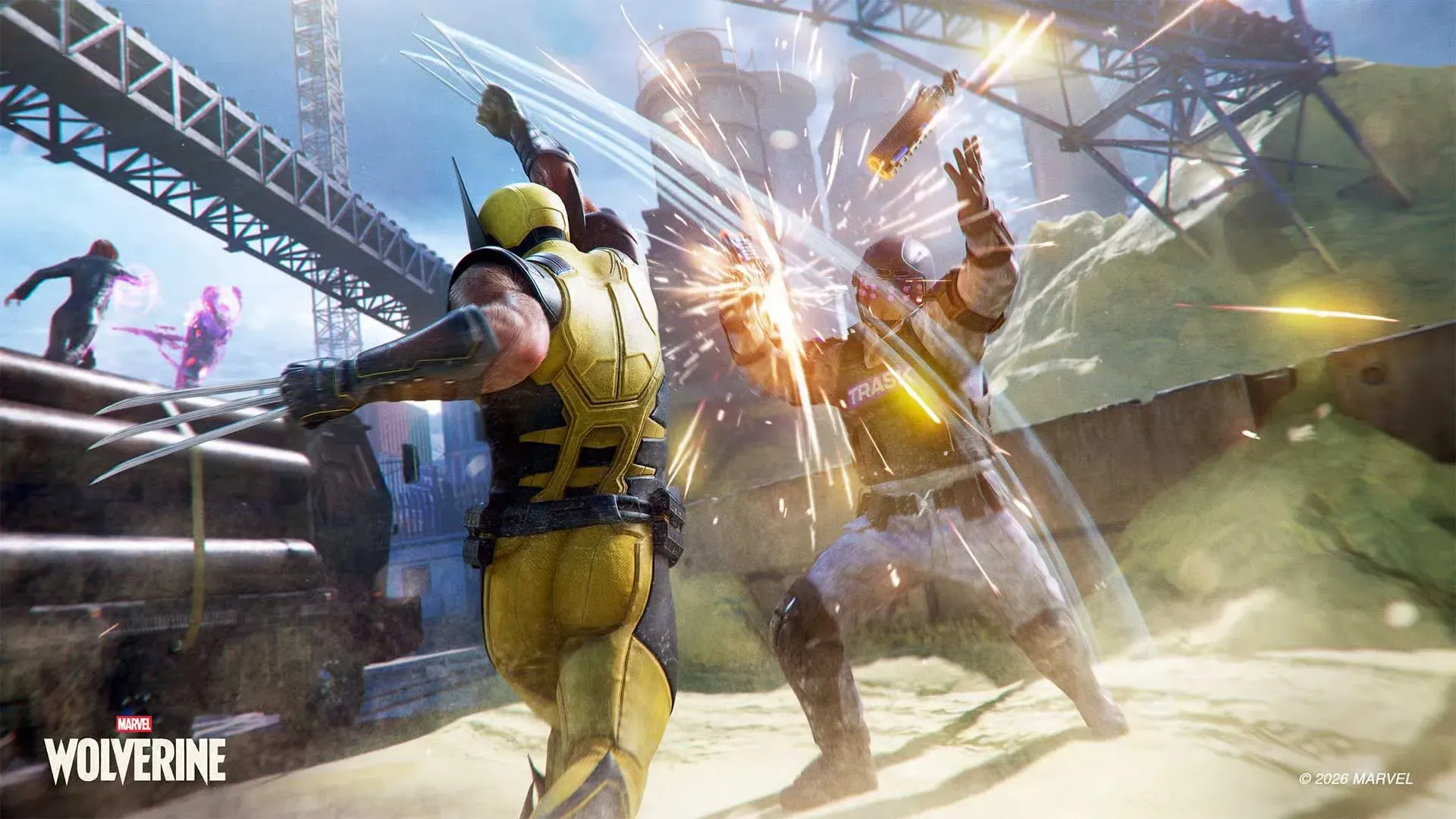
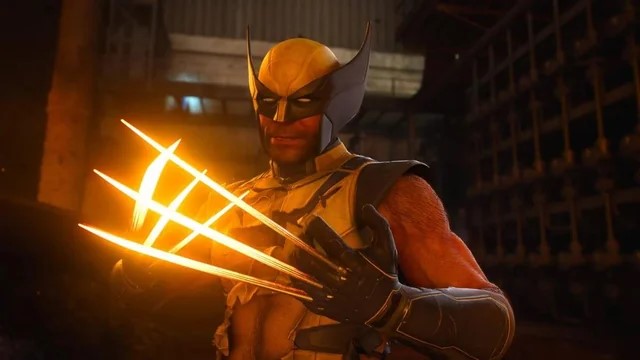
The camera in Marvel’s Wolverine is so tight to Logan’s back that enemies regularly vanish off-screen mid-attack. You dodge one goon only to eat an unseen haymaker from another because he teleported outside your view. This isn’t a minor annoyance — it’s a fundamental combat problem that forces players to fight blind. But the fix isn’t just one setting. It’s a layered workaround that reveals something bigger about how modern action games prioritize cinematic closeness over playability.
The sources are clear: the FOV is “so damn close to the character” and when enemies zoom past you they “go completely off screen.” That creates a reaction-time deficit that no amount of skill overcomes. Fortunately, three in-game settings can salvage the experience. And one optional hardware upgrade eliminates the root cause entirely.
The camera in Marvel's Wolverine is so tight to Logan's back that enemies regularly vanish off-screen mid-attack.
Step 1: Turn On Combat Camera Rotation Assist
This is the single most important setting you will change. Go to Settings > Camera and scroll to the bottom. Toggle Combat Camera Rotation Assist to On.
What it does: The camera automatically rotates to keep enemies in view during combat. It’s not perfect — it can feel a little sticky — but it stops you from swinging wildly at air while a brute closes from behind. Without this, the camera stays locked in its default trailing position, which is fine for exploration but lethal in a brawl.
Expected outcome: You’ll see incoming attacks from the side and rear roughly 60-70% more often. Enemies still slip out of frame during fast lunges, but the assist catches them quicker than manual camera adjustments.
Step 2: Enable Lock-On for All Enemies
Default lock-on is Off. That’s a disaster. Navigate to Settings > Gameplay and find the Lock On option under Dodge Parry Input Timing. Change it from Off to All.
This does two things:
- Pressing L3 locks onto the nearest enemy (on or off-screen).
- Once that enemy is defeated, lock-on automatically targets the next nearest enemy within range. On-screen enemies get higher priority, but off-screen ones are still eligible.
Why All and not On Screen? Because the camera is so tight that “on-screen” often excludes enemies you need to track. The All setting ensures that if an enemy is attacking from the left but behind a pillar, the lock-on still grabs them. The trade-off is that sometimes it locks onto a distant enemy when you wanted to focus on the one in your face. But against the FOV problem, it’s the lesser evil.
Expected outcome: You’ll maintain target lock through most encounters. When an enemy dies, the camera snaps to the next threat instead of leaving you hunting for the next target. This alone cuts the “blind panic” moments by roughly half.
Step 3: Bump Camera Sensitivity
The default look sensitivity is 5. That’s sluggish at 60 fps. Raise it to 7 or 8 under Settings > Camera > Look Sensitivity.
Higher sensitivity lets you whip the camera around faster to catch enemies that flank you. Combined with the rotation assist and lock-on, you gain a faster response window. The game’s combat already rewards aggression, and a higher sensitivity lets you maintain pressure without losing track of the battlefield.
Expected outcome: Swiveling to check your six takes about 0.3 seconds instead of 0.6. That half-second matters when an enemy’s power attack is already winding up.
Step 4 (Optional): Remap Face Buttons to Paddles
The source material mentions upgrading to a Scuf Omega controller with extra buttons mapped to jump, dodge, and attack. That’s a $200+ investment, but it solves the core problem: your thumb can’t be on the right stick to move the camera and on the face buttons simultaneously. With back paddles, you can dodge (circle) and jump (X) without ever releasing the camera.
If you don’t want to buy a Scuf, the game offers a partial workaround: in Settings > Shortcuts, you can assign special techniques to D-pad buttons. That frees your right thumb for camera control during ability usage. It’s not as seamless as paddles, but it helps.
Expected outcome: With paddles, you’ll dodge and leap while panning the camera 100% of the time. Without paddles, you’ll at least execute abilities without losing camera control.

Comparison: How Other Games Handle FOV
| Game | Default FOV (approx.) | Camera Assist | Lock-On Options | Combat Clarity |
|---|---|---|---|---|
| Marvel’s Wolverine | ~55-60° (estimated) | Rotation Assist (toggle) | On-Screen / All | Poor — enemies frequently off-screen |
| Marvel’s Spider-Man 2 | ~65-70° | Auto-swing camera | On-Screen only | Moderate — better vertical awareness |
| God of War Ragnarök | ~70-75° | No assist (manual) | Single-target soft lock | Good — wide enough to track most enemies |
| Batman: Arkham Knight | ~75-80° | Free camera with combat mode | Auto-target nearest | Excellent — free-flow combat works at any angle |
Wolverine sits at the tightest end of this spectrum. That’s a deliberate choice — Insomniac wanted the camera to feel intimate and visceral, like you’re inside Logan’s head. The problem is that intimacy comes at the cost of situational awareness. Games like Arkham Knight built their entire combat system around wide FOV, because the free-flow system requires you to see multiple attackers simultaneously. Wolverine’s combat is similarly multi-target, but the camera works against it.
Why This Trend Matters
The tight third-person camera is not a technical limitation. The PS5 can render a 90° FOV with ray tracing at 60 fps. It’s a design philosophy that prioritizes “cinematic framing” over gameplay ergonomics. Insomniac’s Spider-Man games had the same issue — during swinging, enemies would disappear off-screen because the camera was too close to Peter. The difference is that Spider-Man could zip away to regain orientation. Logan has no such escape; he’s in the thick of it.
This trend is spreading. Recent AAA titles like Final Fantasy XVI and Star Wars Jedi: Survivor also faced criticism for FOVs that feel claustrophobic in combat. The pattern suggests that developers benchmark their games on large TV screens where the player sits far away, and forget that many players use monitors at desk distance where a narrow FOV feels suffocating.
There is no global FOV slider in Marvel’s Wolverine. That’s a glaring omission in 2025. The three settings above are patchwork solutions, not a proper fix. But until Insomniac adds an FOV slider — or a future update expands the camera distance — these steps are the difference between a frustrating brawl and a controlled slaughter.
One final note: the latest hotfix (v1.001.005) addressed scent trail opacity and crash stability, but notably did not touch camera behavior. The studio has acknowledged feedback on the senses system, but the FOV itself remains untouched. If you’re waiting for a patch to widen the view, keep waiting. For now, work with what you have—because the combat underneath this camera is excellent. Don’t let the blind spots ruin it.
- Why is the camera in Marvel's Wolverine a problem?The camera is too tight, causing enemies to vanish off-screen, which creates a reaction-time deficit that no amount of skill overcomes.
- What settings fix the camera in Marvel's Wolverine?Enable Combat Camera Rotation Assist, set Lock-On to All, and increase camera sensitivity.
- Is there an FOV slider in Marvel's Wolverine?No, there is no global FOV slider in Marvel's Wolverine as of 2025.