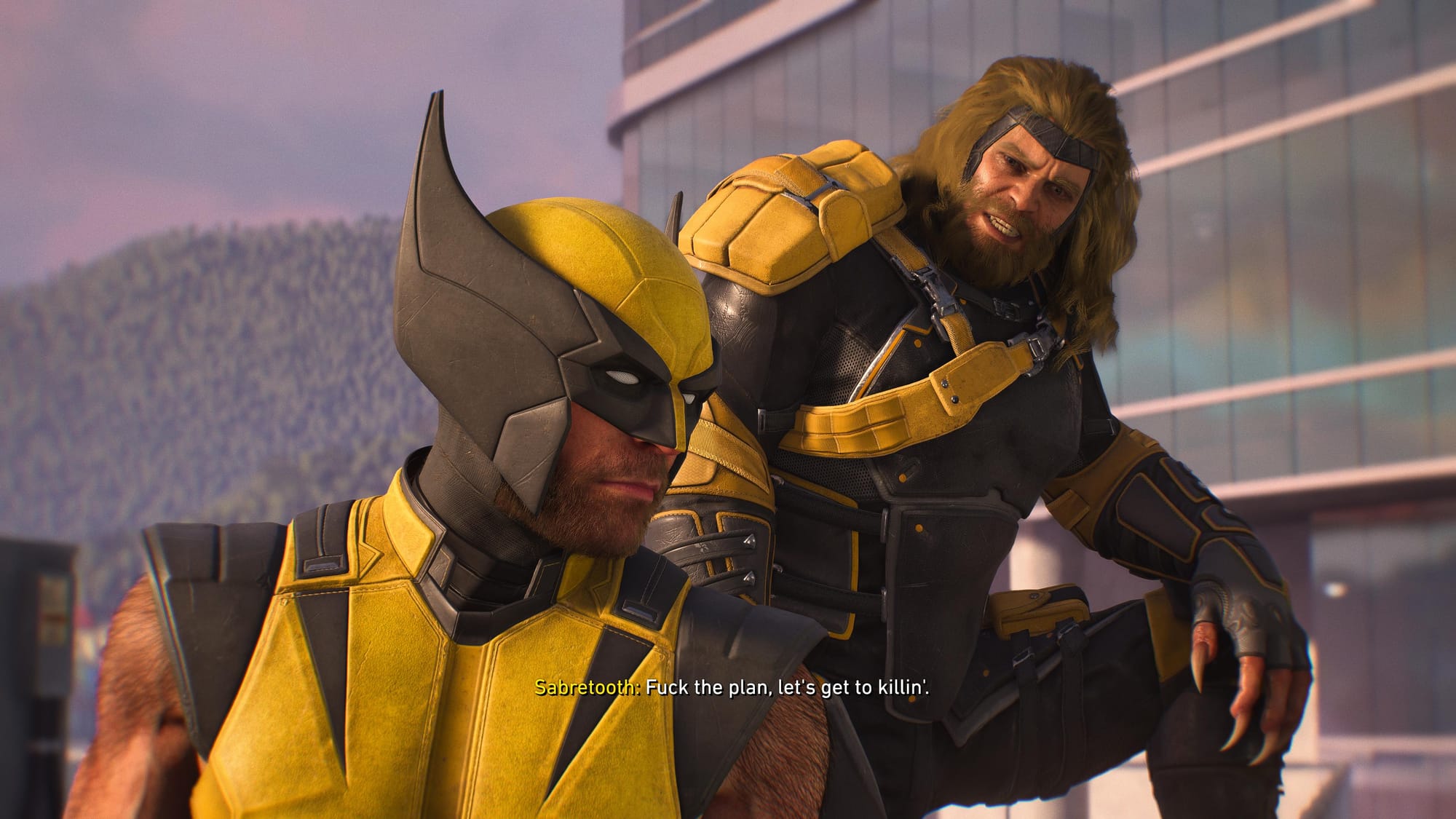
Photo mode in Marvel’s Wolverine isn’t just a side feature—it’s a director’s toolkit hiding inside a brawler. Insomniac gave Logan a robust suite of camera controls, and the trend of virtual photography has shifted from hobbyist niche to a key way players engage with games. You can now frame a snikt mid-air, tweak the gore on his exposed adamantium, or shrink him into an action figure. These shots aren’t just trophies; they’re reinterpretations of the game’s tone. Here’s how to make the most of it.
1. Map Photo Mode to a D-Pad Shortcut
Before you even snap a frame, set up access. Go to Settings > Shortcuts and assign Launch Photo Mode to one of the four D-pad buttons. I put it on the up button. This lets you open photo mode instantly during combat, cutscenes, or exploration without fumbling through menus. The game already supports this, but most players never change the defaults. Do it now.
Photo mode in Marvel's Wolverine isn’t just a side feature—it’s a director’s toolkit hiding inside a brawler.
2. Use the Gore Slider as a Storytelling Tool
Wolverine’s model takes damage in real time—flesh tears, bone shows. In photo mode, the Damage slider (under Character) lets you dial that from 0% to 100%. Beginners leave it at zero for clean hero poses. Experienced photographers crank it to 70% or 80% mid-fight to capture the cost of his healing factor. Pair it with a dramatic lighting angle, and you get a shot that tells the story of a fight, not just a pose.
3. Remove the Cowl for Expressive Portraits
Most suits allow you to toggle the cowl on or off by pressing Triangle on the suit selection screen. But did you know this carries into photo mode? Equip a cowled suit, set the cowl off, then open photo mode. Logan’s full face is visible—great for capturing emotion or that iconic stern look. The X-Force suit with the mask off is a fan favorite for this.
4. Capture Split-Second Action with Slow Motion
The game’s shortcut menu includes a Game Speed option (30%, 50%, 70%). Tie that to another D-pad button. When you see a perfect moment—Logan leaping onto a stunned enemy, claws extended—hit the slow-mo shortcut, then open photo mode. This gives you time to frame, adjust focal length, and freeze the action exactly when the impact lands. Practitioners use this during parry counters or helicopter spin attacks.
/i.s3.glbimg.com/v1/AUTH_08fbf48bc0524877943fe86e43087e7a/internal_photos/bs/2026/q/B/lkYuIrTuiCRDZV7lHBaQ/wardogs-launch-trailer-2-.jpeg "WARDOGS: The Windows Setting That’s Silently Killing Your")
5. Ignore the Default Angles – Fly the Camera
Most players stick to shoulder-level shots. The photo mode’s camera orbit lets you float high above or dive low to the ground. For environmental shots, pull way back and frame Logan small against a destroyed lab or a snow-covered forest. The game’s linear levels hide beautiful backgrounds if you look up. For combat shots, drop the camera to knee height and angle upward—it makes Wolverine look towering and feral.
6. Action Figure Mode for Creative Scale
The Action Figure toggle (under Camera) zooms the camera perspective in a way that makes everything look like a diorama. Use it to photograph Logan in the cabin against the bed, or perched on a ledge. The miniature effect transforms a standard screenshot into a toy photography style. Combine it with a wide aperture and a shallow depth of field for that tilt-shift look.
7. Spot Hidden Details with Zoom
This is the advanced tip most players miss. Photo mode’s zoom (R3 to zoom further) lets you inspect tiny objects that are easy to miss during gameplay. Use it to read books on desks, examine posters, or check for Easter eggs in the environment. I found a reference to Spider-Man’s Daily Bugle on a computer screen only because I zoomed in during a photo session. It also helps locate hidden collectible crates—their glow catches the light differently when framed.
The photo mode in Marvel’s Wolverine is a sandbox for storytelling, not just a screenshot tool. As Insomniac continues to tweak the game (they’ve already adjusted scent-trail visuals), the community will likely push for even more options—wider FoV, more focal lengths, maybe a proper replay system. Until then, these settings give you the control to make every shot feel like a cover of an X-Men comic.