The most counterintuitive thing about WARDOGS isn’t the game itself. It’s that the official minimum specs on the store page are almost certainly not enough to run the game without crashing. And that’s not speculation. That’s what the crash logs say.
Here’s the uncomfortable truth: WARDOGS doesn’t just demand hardware. It demands that your entire system be configured in a specific way. The game’s kernel-level anti-cheat interacts with Windows security updates, background processes, and even RGB software in ways that have nothing to do with your GPU’s raw power. You can have a top-tier rig and still get kicked to desktop every few minutes. Meanwhile, someone with a mid-range build who has disabled the right processes can play for 24 hours straight without a single crash.
So before you panic about your specs, understand this: the system requirements are only half the story. The other half is system hygiene. And that’s what this guide covers.
What WARDOGS Actually Requires at Minimum
Let’s start with what the official requirements say. WARDOGS is a competitive multiplayer shooter, which means it’s built to run on a wide range of hardware. The minimum specs are modest:
- OS: Windows 10 64-bit
- CPU: Intel Core i5-6600K or AMD Ryzen 5 1400
- RAM: 8 GB
- GPU: NVIDIA GeForce GTX 960 or AMD Radeon RX 470
- Storage: 40 GB available space
The recommended specs bump things up:

- OS: Windows 11 64-bit
- CPU: Intel Core i7-9700K or AMD Ryzen 7 3700X
- RAM: 16 GB
- GPU: NVIDIA GeForce RTX 2070 or AMD Radeon RX 5700 XT
- Storage: 40 GB SSD
Here’s the catch: these numbers tell you what the game needs to render frames. They tell you nothing about what the game needs to stay running. And that’s where most players get stuck.
The Real Minimum Requirement: A Clean System
The single biggest cause of WARDOGS crashes isn’t weak hardware. It’s a Windows security update from August 12th that conflicts with the game’s anti-cheat. This update has been documented breaking kernel-level processes across multiple games, not just WARDOGS. The Finals had the exact same issue.
The crash signature is almost always the same: a process called inputx64.syscodecodecodecodecodecode shows up in Event Viewer with a red exclamation mark right after the crash. That’s an RGB peripheral driver process. It has no business interfering with your game. But it does.
So here’s the checklist that actually matters, in order of importance:
1. Check Event Viewer After a Crash
This is the diagnostic step most players skip. When WARDOGS crashes, don’t immediately relaunch it. Open Event Viewer first.
- Press
Win + Xcodecodecodecodecodecode and select Event Viewer - Navigate to Windows Logs → System
- Look for a red exclamation mark, not the yellow warnings
- The entry will name the process that caused the crash
In most cases, it’s inputx64.syscodecodecodecodecodecode. If you see something different, note it. The fix is the same, but you need to know the exact process name to target it.
2. Disable the Conflicting Process via Command Prompt
This is the fix that turned a game that crashed every few seconds into one that ran for 24-26 hours without a single issue. The process needs to be stopped and prevented from auto-starting.
Open Command Prompt as administrator and run these two commands:
“`
sc stop inputx64
sc config inputx64 start= disabled
“`
Then restart your PC. After the restart, run this command to verify:
“`
sc query inputx64
“`
It should say STOPPEDcodecodecodecodecodecode. If it says RUNNINGcodecodecodecodecodecode, repeat the process. Once it’s stopped, launch WARDOGS. This single step resolves the majority of crash-related issues.
You don’t need to delete the process entirely. Disabling it is sufficient. That’s the safer route if you’re worried about breaking something else.
3. Update Your GPU Drivers — But Do It Right
A new NVIDIA Game Ready Driver released on September 9th, specifically optimized for WARDOGS. If you haven’t installed it, that’s your first problem.
But here’s the common mistake: most people just click “Express Install” and call it done. That’s not enough. You need a clean installation.

- Go to the NVIDIA or AMD website
- Select your graphics card and operating system
- Download the latest driver
- Run the installer
- Choose Custom Installation
- Check the box for Perform a Clean Installation
- Complete the installation and restart your PC
The clean installation wipes out all remnants of previous drivers. This matters more than most people realize. Old driver files can conflict with new ones, and WARDOGS is sensitive to that.
4. Verify Game Files Through Steam
This is the standard fix, but it’s worth doing even if you think your installation is fine. Files can get corrupted during installation without any visible error.
- Right-click WARDOGS in your Steam library
- Go to Properties → Installed Files
- Click Verify Integrity of Game Files
- Wait for the process to complete
After verification, restart your PC before launching the game. Restarting after every fix is non-negotiable. Changes don’t always take effect immediately, and a fresh boot ensures nothing is lingering in memory.
5. Optimize Windows Settings for Performance
WARDOGS is a competitive game. Every millisecond of input latency and every dropped frame matters. Windows has several settings that work against you by default.
- Disable transparency effects: Settings → Personalization → Colors → Turn off Transparency Effects. This removes unnecessary animations and frees up a small amount of GPU resources.
- Turn off Game Bar: Settings → Gaming → Game Bar → Turn it off completely. Game Bar runs as a background overlay service and consumes system resources even when you never use it.
- Enable Game Mode: Settings → Gaming → Game Mode → Turn it on. This optimizes your PC by shutting down background processes while you play.
These are small changes individually. Combined, they reduce the amount of background interference that can trigger crashes in a game with kernel-level anti-cheat.
6. Update Your BIOS
This is the step everyone forgets. BIOS updates often include stability fixes for memory controllers and PCIe devices. A BIOS update can resolve crashes that no amount of software tweaking will fix.
Go to your system manufacturer’s website, find your motherboard or laptop model, and download the latest BIOS. If you have a laptop, make absolutely sure the battery is charged and the AC adapter is connected before starting the update. A power failure during a BIOS update can brick your system.
7. Update Windows — But Be Careful
Windows updates are a double-edged sword. The August 12th security update caused the WARDOGS crash issue in the first place. But other updates can fix it.
Go to Settings → Windows Update → Check for Updates. Install everything available, then restart.
If a recent update is causing problems — blue screens, crashes, instability — you can uninstall it:

- Settings → Windows Update → Update History
- Click Uninstall Updates
- Remove the most recent update that corresponds with when the problems started
- Restart your PC
This is a targeted fix. Don’t uninstall updates randomly. Only remove the one that correlates with when your issues began.
What Not to Do: Common Mistakes That Make Things Worse
Here’s where most guides stop. They give you the steps and send you on your way. But there are mistakes that players make that actively worsen the situation. Avoid these:
Don’t Immediately Uninstall and Reinstall the Game
The source material suggests moving the game to a different drive as a potential fix. That’s valid — it can help in some cases. But uninstalling and reinstalling should be your last resort, not your first instinct. Reinstalling doesn’t fix driver conflicts or Windows update issues. It only fixes corrupted game files, and you can verify those through Steam without a full reinstall.
If you do decide to move the game to another drive, uninstall it first, then reinstall it to the target drive. Don’t just drag the folder. That leaves registry entries and config files behind.
Don’t Delete the Conflicting Process Entirely
The Event Viewer may point to inputx64.syscodecodecodecodecodecode as the culprit. Some sources recommend deleting it outright. Don’t do that. That process belongs to your RGB peripheral software. Deleting it can break your keyboard, mouse, or lighting functionality. Disabling it via Command Prompt achieves the same result without the risk.
Don’t Ignore Restart Requests
Every single fix in this guide requires a restart to take full effect. Skipping the restart is the most common reason people think a fix didn’t work. The changes you made haven’t failed. They just haven’t been applied yet.
Don’t Assume Your Specs Are the Problem
If your system meets the minimum requirements and the game still crashes, your hardware isn’t the issue. The crash logs will tell you what’s actually wrong. Check Event Viewer before you spend money on upgrades you don’t need.
The Bottom Line on WARDOGS System Requirements
The official specs are a baseline for rendering performance. They don’t account for the game’s sensitivity to system configuration. A machine that meets the recommended specs but has a conflicting background process will crash more often than a machine that barely meets the minimums but has a clean system.
The fix that worked for me: disabling inputx64codecodecodecodecodecode through Command Prompt turned a game that crashed every few seconds into one that ran for 24-26 hours straight without a single crash. That’s not a hardware problem. That’s a configuration problem. And it’s fixable.
WARDOGS is a demanding game, but it’s demanding in ways the spec sheet doesn’t show. Clean your system, disable the conflicting processes, update your drivers properly, and the game will run. Ignore those steps, and no amount of hardware will save you.

When the Standard Fixes Fail
There’s one scenario where none of this works: when the crash is caused by a process unique to your system. The inputx64codecodecodecodecodecode fix works because that process is common across many configurations. But your Event Viewer might show something entirely different.
If that happens, you have two options. First, search for the process name in the crash log. If it’s a known issue, someone has posted a fix. Second, if you can’t find anything, uninstall the software that owns the process. That might mean removing your RGB control software, your audio driver, or something else entirely.
This is the edge case where the general advice falls apart. The process that crashes your game might be essential to another piece of software you use daily. In that case, you have to choose between the game and that software. There’s no clean answer. But at least you’ll know what the actual problem is.

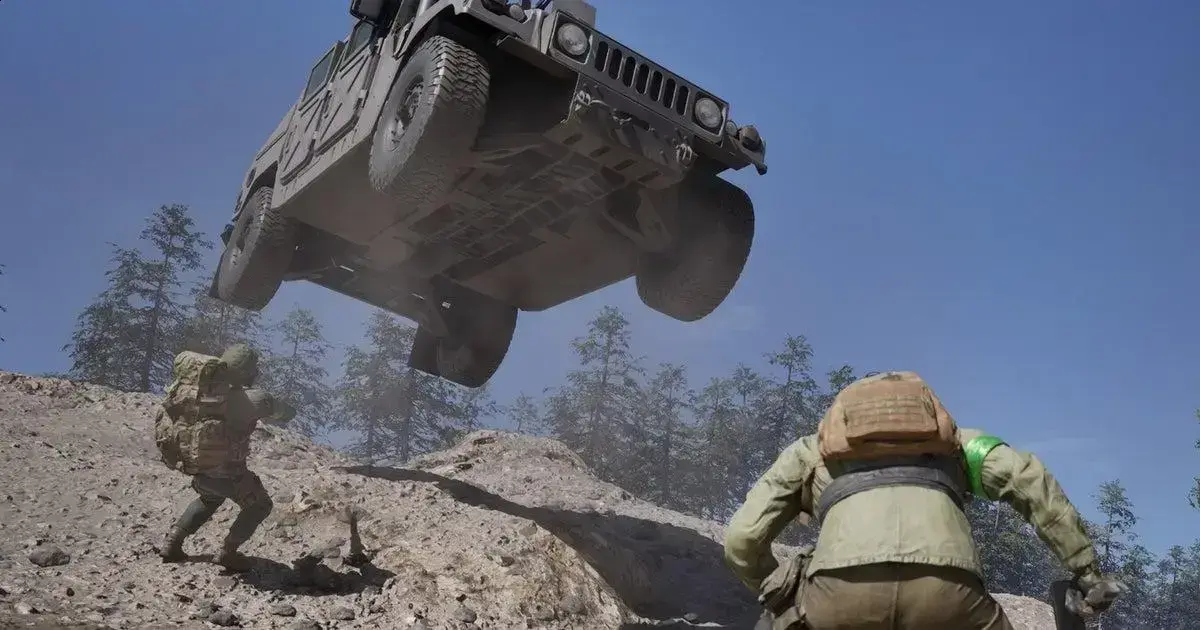

/uploads/conteudo/fotos/marvel-s-wolverine-callisto.webp "Marvel’s Wolverine Glitches: 10 Bugs & Out-of-Bounds Spots")

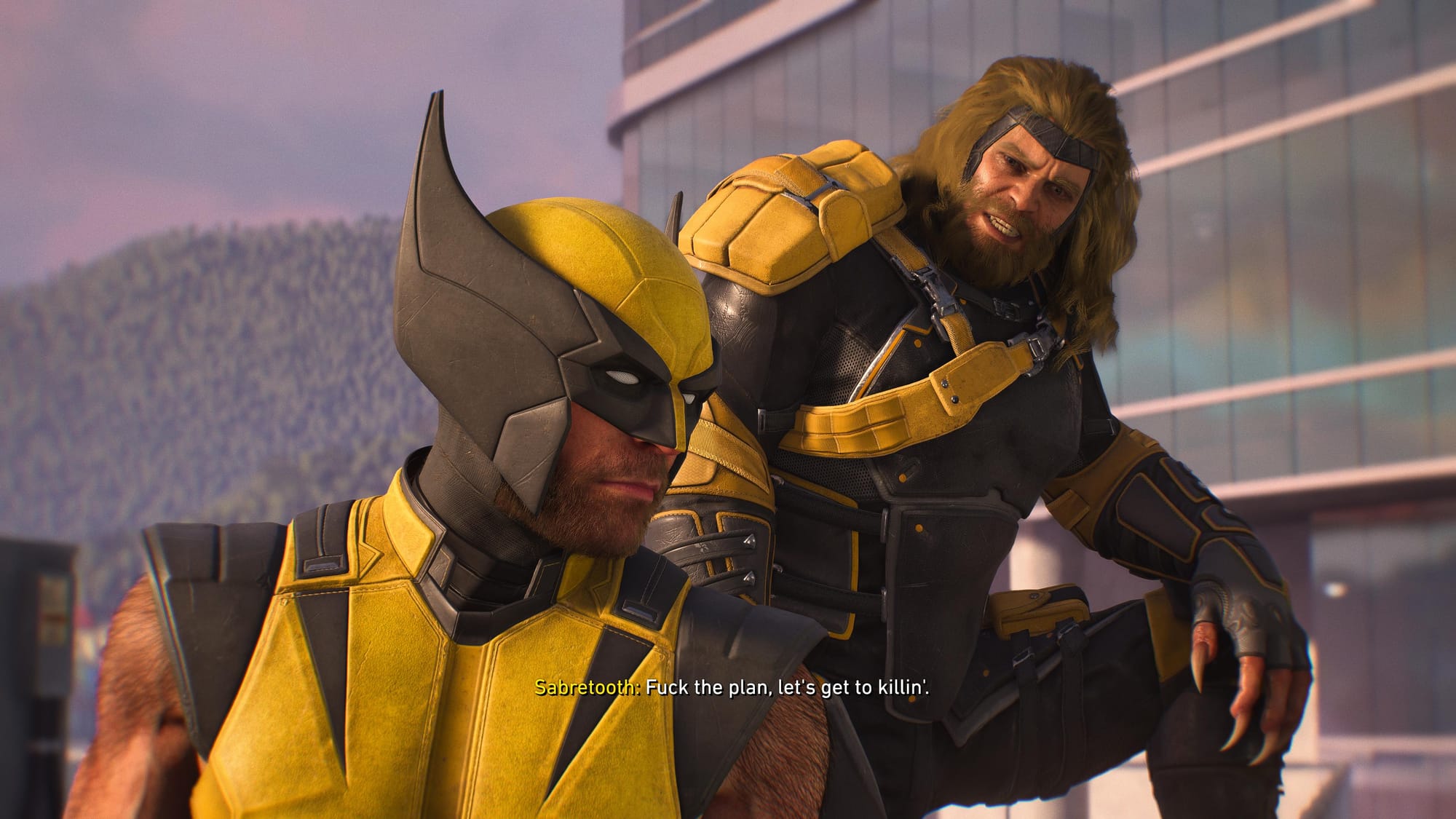
/i.s3.glbimg.com/v1/AUTH_08fbf48bc0524877943fe86e43087e7a/internal_photos/bs/2026/q/B/lkYuIrTuiCRDZV7lHBaQ/wardogs-launch-trailer-2-.jpeg "WARDOGS: The Windows Setting That’s Silently Killing Your")