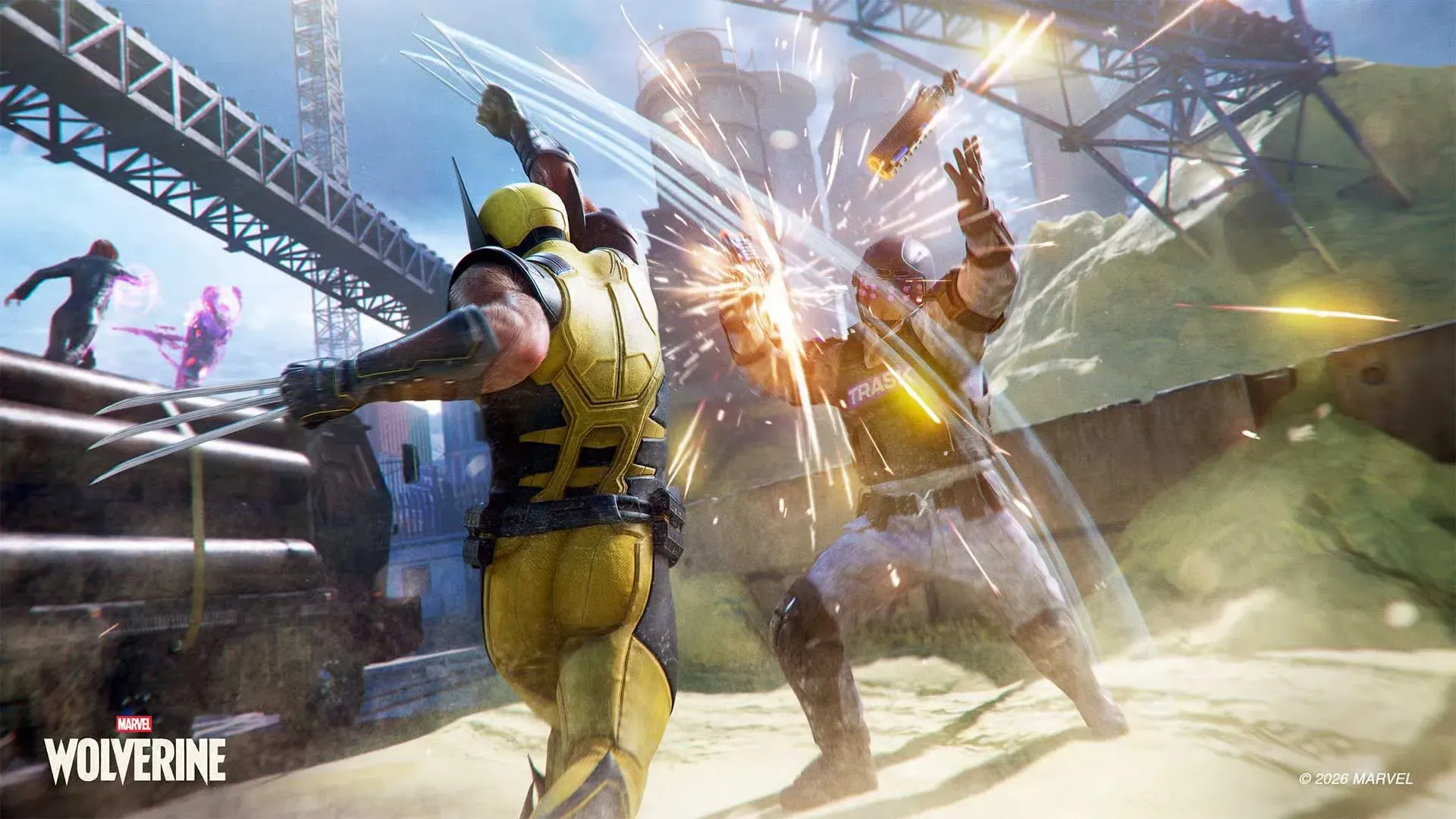
Most shortcut guides for Marvel’s Wolverine push the same safe picks: photo mode on the left D-pad, collectibles tracker on the right. Useful? Sure. Optimal? No. That setup sacrifices combat efficiency for convenience you rarely need mid-fight. I’m going to argue the opposite—and you will not find this recommendation on the official game manual or in the majority of tip videos.
The default shortcut assignments are a trap because they train you to remove your thumb from the left stick during moments that demand constant movement. In the game’s tightest encounters, you face 8–12 enemies simultaneously while the camera stays too close to Logan’s back. Taking even a split second to reposition your thumb onto the D-pad for a special ability can get you hit, staggered, or killed. The solution isn’t a $200 controller. It’s smarter what you assign to those four D-pad slots—and why.
I won because I stopped treating the D-pad as a menu and started treating it as a weapon.
Why the Default Shortcut Setup Is a Trap
Insomniac loaded Marvel’s Wolverine with more accessibility options than most players will ever open. The default D-pad shortcuts are deliberately blank for you to fill, but the suggestions in the in-game tooltips lean toward exploration and convenience: Photo Mode, Game Speed, Collectibles Tracker, Navigation Assist. These are fine for the open-world sections of Spider-Man 2. For a linear brawler where every second of combat demands your full attention, they are dead weight.
The problem is simple physics. Your left thumb naturally controls movement and, once you enable lock-on (which you should), enemy targeting. To activate any D-pad shortcut, you lift that thumb, momentarily losing control over positioning. In a game where enemies attack from off-screen and red attacks cannot be parried, even a 0.3-second gap in movement can force you into a last stand recovery. The common advice—”just get used to the claw grip or buy a pro controller”—ignores that the D-pad itself is a resource you can optimize with two specific assignments.
The Combat-First Shortcut Philosophy
Stop treating the D-pad as a menu. Treat it as an extension of your combat rotation. The goal is to assign actions that either replace a multi-button input you use constantly or that give you a reaction speed advantage when things get chaotic. Based on the experience of players who completed the game on the hardest difficulty—and who used controllers like the Scuf Omega to map D-pad to back buttons—the two most valuable D-pad assignments are Critical Strike and Enemy Push Attack.
These are not obvious picks. Critical Strike is normally activated by pressing L2+R2 simultaneously, which is already fast. But here is the catch: L2+R2 also controls your claw extension and, in some situations, can trigger a critical strike on the wrong enemy or at a moment you wanted to hold the button for a charge. Locking it to a dedicated D-pad button eliminates ambiguity. You press left D-pad, Logan instantly performs a critical strike on the nearest viable target—no accidental claw pops, no mis-timed presses.
Enemy Push Attack (the hold-square kick) is even more powerful than most players realize. It staggers shielded enemies, breaks blocking combos, and can launch foes off ledges for instant kills. The default input requires holding square while simultaneously moving the left stick to aim the throw direction—a clumsy two-thumb operation. Assigning it to a D-pad button frees your right thumb to keep controlling the camera, which is the real game-changer. You maintain situational awareness while also landing precision kicks.
The Two Must-Have Assignments: Critical Strike and Enemy Push Attack
Here is the specific configuration I use and recommend for standard DualSense controllers:
- Left D-pad (Shortcut 4): Enemy Push Attack
This puts the stagger-heavy kick on a single tap. When you see a shielded enemy or a ranged foe you want to punt off a cliff, you tap left D-pad without breaking your movement rhythm. The game treats it identically to holding square, but your thumb never leaves the stick.
- Down D-pad (Shortcut 3): Critical Strike
Down D-pad is naturally the least comfortable for fast pressing, so assign it to an ability you use intentionally rather than reflexively. Critical Strike fits that profile—you use it when an enemy’s health is low or when rage tier 3 gives you the kill prompt. It’s not spam; it’s a finisher.
- Right D-pad (Shortcut 2): Photo Mode or Collectibles Tracker
I concede this one to the crowd. Out of combat, having photo mode or the tracker on an easy-to-reach button saves menu navigation. During combat, these shortcuts do nothing. That is fine—you need two combat slots, not all four.
- Up D-pad (Shortcut 1): Game Speed 30%
This is my controversial slot. Slowing the game to 30% speed is normally a photography tool, but it also functions as a panic button. When you get overwhelmed and need a split second to assess enemy positions, tapping up D-pad buys time without pausing the action. It is not a combat trick you use often, but having it ready is superior to any damage buff shortcut that you’d have to memorize cooldowns for.
How to Configure Even Without a Pro Controller
You do not need back buttons to make this work. The DualSense’s D-pad is fine for these four assignments because only two of them see heavy combat use. The others stay idle until you need them. The key is that your thumb habitually rests on the left stick, and reaching for left D-pad or down D-pad requires minimal movement—you roll the thumb joint, not lift the whole digit. Up D-pad is slightly worse, but that slot holds the game speed toggle, which you rarely press mid-combo.
If you do own a pro controller like the Scuf Omega or the DualSense Edge, map the two combat shortcuts (left and down D-pad) to back paddles. That setup gives you the optimal experience: you never move your thumbs at all during a fight. But even without the paddles, this configuration eliminates the most common frustration: needing to hold square while also trying to aim a throw. The push attack becomes a single press, and critical strikes no longer require precise simultaneous button presses.
The Hidden Value of Game Speed Slow-Motion Shortcut
Most guides ignore the Game Speed shortcut entirely or dismiss it as a gimmick for photo mode. This is a missed opportunity. Marvel’s Wolverine has a built-in panic button that lets you drop combat to 30%, 50%, or 70% speed with one D-pad tap. In the gauntlet-style Nightmare Doors and against late-game bosses that spam unblockable red attacks, slowing time gives you a window to identify the threat pattern and react cleanly. It is not a crutch—it is an accessibility feature that you weaponize by intentionally activating it in high-pressure moments.
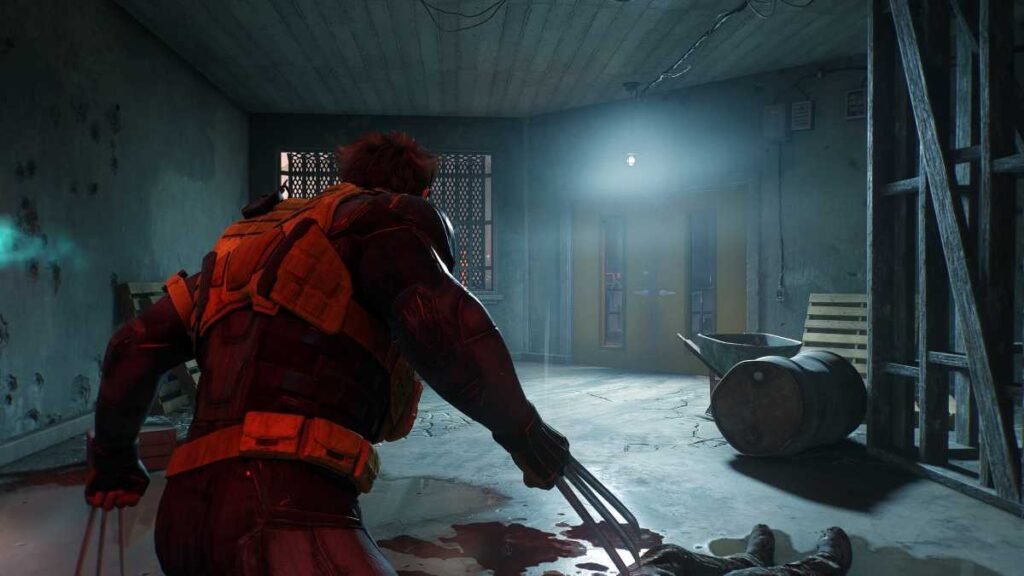
I assigned 30% speed to Up D-pad because that button is the hardest to reach mid-fight. When I realize I’m about to eat a red attack from an off-screen enemy, I jam my thumb upward, the world slows, and I dodge. Without that shortcut, I would have to either pause the game (breaking immersion) or eat the hit. The trade-off is that you lose a potential combat ability slot, but the slow-motion effect effectively gives you a free read on enemy behavior, which is more valuable than any single offensive technique.
Rethink Your Shortcuts at Least Once Mid-Game
Your playstyle changes as you unlock advanced techniques like Brutal Assault and Helix Claws. The shortcut priorities you set in the first three chapters may not serve you well in the final act. If you find yourself never using Enemy Push Attack against elite enemies, swap it for Knee Breaker or Relentless—both are assignable to D-pad shortcuts. The menu lets you reconfigure mid-mission with zero penalty. Do not treat your initial setup as permanent.
The real test of this configuration is the Last Stand at Cold Pines Nightmare Gauntlet. In those 25 waves, you will face constant spawns, snipers, and leaders that demand instant reactions. My setup held up; the critical strike shortcut let me finish enemies without breaking lock-on, and the push attack cleared space when I was surrounded. The slow-motion panic button saved me on wave 18 when two brutes cornered me. I did not win because of a pro controller. I won because I stopped treating the D-pad as a menu and started treating it as a weapon.
- Why are default D-pad shortcuts a trap in Marvel's Wolverine?Default shortcuts focus on exploration and convenience, but they require removing your thumb from the left stick during combat, causing loss of movement and targeting control.
- What are the two most valuable D-pad shortcut assignments for combat?Critical Strike and Enemy Push Attack are the top picks because they replace multi-button inputs and provide reaction speed advantages.
- How often should you reconfigure your D-pad shortcuts?You should rethink your shortcuts at least once mid-game as your playstyle changes with new techniques.