Everyone says it: turn everything to Low, disable shadows, drop resolution. That advice gets repeated in every YouTube comment section and Reddit thread. And it works—sort of. You get higher frame rates, but the game looks worse than it should, and in some cases, performance actually degrades.
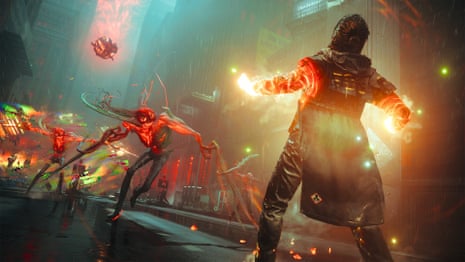
Control Resonant isn’t your average shooter. Its combat system relies on tight stagger windows, ability chaining, and close-range encounters. A stutter at the wrong moment costs you a fight. But the fix isn’t always slamming every slider to zero. Different hardware, different bottlenecks. Here’s what the common advice gets wrong, and what actually works.
The best setting for Control Resonant isn't 'everything low.'
The VRAM Trap: Why Texture Quality Matters More Than You Think
The standard recommendation is to drop texture quality to Low immediately. The logic: textures are heavy, so they must be the first thing to cut. For older cards with 4GB VRAM or less, that’s correct. But if you’re running an 8GB or higher card, Low textures introduce a different problem: the game starts using CPU to constantly stream lower-resolution assets, which can cause micro-stutters in areas with dense environments.
Set texture quality to High if your VRAM can handle it—check your GPU’s memory usage in the in-game overlay. On 8GB cards at 1080p, High textures typically consume around 4-5GB. That leaves headroom for shadows and effects. On 6GB cards, Medium is the sweet spot. Low should only be used if you’re below 6GB.
Why does this matter? Control Resonant’s environments are packed with debris, posters, and interactive objects. Low textures make those surfaces blurry at close range—exactly where you’re fighting. That visual noise doesn’t affect performance, but it affects readability. You misjudge a stagger window because you can’t see the enemy’s attack tell. The game is designed around visual clarity in close quarters.
Shadows and Lighting: The Performance Gap That Doesn’t Exist Anymore
Common advice: turn shadows to Low or Medium. On most modern GPUs (RTX 2000 series and up, RX 5000 series and up), the performance difference between Medium and High shadows is roughly 3-5%. That’s negligible. The visual difference, however, is substantial in indoor environments—where most of Control Resonant’s combat takes place.
Set shadow quality to High. Leave shadow resolution at 1024×1024 or 2048×2048 depending on your GPU. If you’re on a GTX 1060 or RX 580, Medium at 1024×1024 is safe. But don’t drop to Low unless you’re desperate for every frame. Low shadows in this game create a “flat” look that makes it harder to read enemy silhouettes against walls.
Volumetric lighting is the real culprit. That setting can cost 10-15% performance on almost any GPU. Set it to Medium. On Low, indoor light shafts disappear, which makes the game feel washed out. On High, you lose too many frames. Medium is the balance point where you still get atmospheric lighting without the performance hit.
Resolution Scaling: The One Setting That Actually Balances Quality and FPS
The best single setting for Control Resonant is Resolution Scale. You can run your native resolution (1080p, 1440p, 4K) and then scale the internal render target down. Set it to 80% as a starting point. That gives you a roughly 25% performance boost while maintaining most of the visual fidelity. At 70%, the image softens noticeably but still beats dropping to 900p natively.
This isn’t the same as lowering resolution in the display settings. Native resolution ensures the UI and HUD remain sharp—critical for reading ability cooldowns and health bars. Scaling only the 3D render keeps the interface readable.
If you have a card that supports DLSS or FSR, enable it immediately. Control Resonant embeds these options in the Graphics menu. Set DLSS to Quality for 1440p, Balanced for 4K. On FSR, use Quality at any resolution, but be aware that FSR 2.0 introduces some ghosting on fast-moving enemies. DLSS 3.0, if available, gives the cleanest image.
Anti-aliasing and Post-Processing: When to Turn Off vs. Tone Down
Common advice: disable motion blur and depth of field immediately. That’s correct for motion blur—turn it off. It reduces temporal clarity, and in a game where enemy animations are your primary cue, you don’t want blur.
Depth of field, however, depends on your play style. If you use Dylan’s long-range abilities, keep it on Low. The slight blur in the periphery doesn’t affect combat readability, and it improves performance by reducing the number of high-detail elements rendered simultaneously. On High, depth of field is too aggressive and makes close-range fights disorienting.
Anti-aliasing: TAA is the default and performs well. If you’re GPU-bound, switch to FXAA—it’s lighter but introduces aliasing on thin objects like power lines and railings. MSAA is not recommended; it uses too much VRAM for marginal gains.
Post-processing: Screen Space Reflections (SSR) should be set to Medium. Low turns off reflections entirely, which makes puddles and windows look flat. High costs about 8% performance for reflections you rarely notice during combat. Medium gives you enough reflection to maintain immersion without the overhead.

The Shader Cache Issue: Why Your First Playthrough Will Stutter
This is where most “just lower everything” advice fails completely. Control Resonant compiles shaders on the fly. The first time you enter a new area, there will be stutters regardless of your settings. Clearing the DirectX shader cache before each play session—as detailed in many fix guides—can help, but it’s a band-aid.
The real fix: let the game build its cache over the first hour. Do not change your graphics settings during that period. Every time you change a setting, the cache is partially invalidated, and the stuttering starts again. Pick your settings, restart the game once, and play through the first two levels. After that, stutters should drop to almost zero.
If you’re on an older CPU (pre-Ryzen 3000 or Intel 10th gen), the CPU can become the bottleneck during shader compilation. Lowering graphics settings doesn’t help here. Instead, ensure no other heavy applications are running. Background tasks like Discord overlays or browser tabs with video can cause hitching.
Refresh Rate and V-Sync: The Input Lag vs. Tearing Trade-off
Most players turn V-Sync off to reduce input lag. That’s fine if you have a G-Sync or FreeSync monitor. If you don’t, tearing will happen, especially in fast camera movements. The better choice: cap your frame rate 3 FPS below your monitor’s refresh rate (57 FPS for 60Hz, 141 FPS for 144Hz) using the in-game limit or RivaTuner. This eliminates tearing without V-Sync’s input lag.
V-Sync on a 60Hz panel introduces roughly 15-30ms of additional latency. In a game where reaction windows for stagger attacks are tight, that matters. But tearing at 50 FPS on a 60Hz screen is equally disruptive. Cap at 57 FPS, disable V-Sync, and you get smooth gameplay with minimal artifacts.
Bottom Line: The Settings That Actually Matter
The common advice—turn everything to Low—works for budget hardware. But for anyone with a mid-range setup (RTX 3060 / RX 6600 or better, Ryzen 5 3600 or Intel equivalent), you’re leaving visuals on the table without gaining stability.
Start with this baseline:
- Texture Quality: High (8GB+ VRAM) or Medium (6GB)
- Shadow Quality: High (modern GPUs) or Medium (older cards)
- Volumetric Lighting: Medium
- Resolution Scale: 80% native
- TAA: On
- Motion Blur: Off
- Depth of Field: Low
- SSR: Medium
- V-Sync: Off, frame cap at 3 FPS below refresh rate
Adjust from there. If you hit consistent 60 FPS (or your target), bump Volumetric Lighting to High and Resolution Scale to 90%. If you’re still dropping frames, lower Shadow Quality to Medium before touching textures again.
One more thing: the v1.300.300 hotfix changed enemy health and falter thresholds, which means you can afford slightly lower frame rates in combat now. The patch lowered enemy durability, so you’re not trading blows as long. That gives you more headroom to nudge visuals up without hurting your kill times.
The best setting for Control Resonant isn’t “everything low.” It’s knowing which settings the game actually cares about, and which ones your specific hardware can handle without breaking the experience. Pick your battles—and your settings—accordingly.
- Why should I not set texture quality to Low?Low textures can cause micro-stutters on cards with enough VRAM because the CPU constantly streams lower-resolution assets.
- What is the most demanding graphics setting in Control Resonant?Volumetric lighting is the most costly setting, reducing performance by 10-15%.
- How should I configure V-Sync and frame rate?Disable V-Sync and cap the frame rate at 3 FPS below your monitor's refresh rate for smooth gameplay.
/i.s3.glbimg.com/v1/AUTH_08fbf48bc0524877943fe86e43087e7a/internal_photos/bs/2026/B/N/5EQ9QeQAa2XoA9mRtS0w/marvels-wolverine-state-of-play.jpg "Marvel’s Wolverine Settings: What Actually Works in Combat")