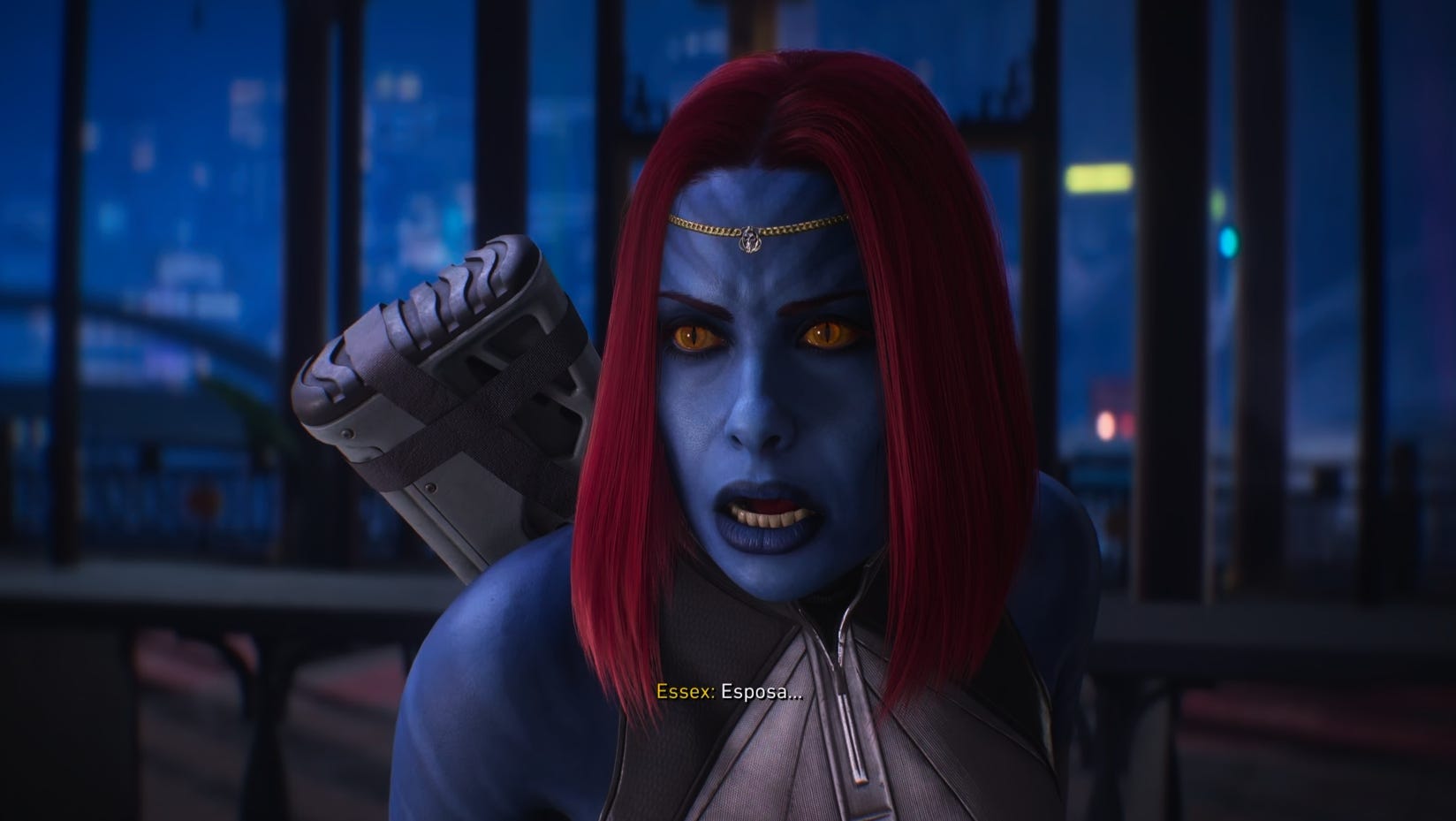
Samson, the gritty action-adventure built on Unreal Engine 5, delivers striking visuals but also demands careful optimization to achieve smooth performance. Players often encounter CPU bottlenecks and inconsistent frame times, especially when navigating busy city streets at high speed. Fortunately, with the right settings and adjustments, you can significantly improve stability and frame rates without sacrificing too much visual fidelity. In this guide, we’ll break down the most effective tweaks—from enabling Frame Generation to fine-tuning Lumen, Shadows, and Upscaling options—so you can enjoy Samson at its best on mid-range and high-end PCs alike.
When it comes to fine-tuning Samson for smoother performance, the first step is understanding which settings deliver the biggest gains without compromising too much on visuals. Unreal Engine 5’s advanced features—Lumen, Nanite, and Virtual Shadow Maps—look impressive but are notoriously demanding, especially in open-world environments. To balance fidelity and frame rate, players should prioritize Frame Generation if their GPU supports it, as this can nearly double FPS with minimal latency impact. For those who prefer not to use Frame Gen, forcing Software Lumen instead of Hardware Lumen can ease CPU bottlenecks, though it comes with trade-offs in lighting quality.
Beyond these core adjustments, several in-game settings can be optimized for stability:
- Global Illumination → Set to Quality for a good balance of visuals and performance.
- Shadows → Use Balanced unless you have extra VRAM; Quality offers better visuals but costs more.
- Textures → Stick to Balanced on 8GB GPUs to avoid stuttering from VRAM overload.
- Reflections → Balanced is often more stable than Quality, though Quality looks better if your system can handle it.
- Effects → Keep on Performance since higher options add little visual benefit but cost up to 8% FPS.
- Hair Strands → Disable, as they add ~9% performance hit without a major visual upgrade.
These adjustments alone can yield up to a 47% performance uplift compared to Ultra settings, making Samson far more enjoyable on mid-range hardware.
Upscaling Options: DLSS, FSR, and TSR

One of the most impactful settings in Samson is the choice of upscaling technology, which directly influences both image quality and performance. The game supports DLSS 4, FSR 3, and Epic’s TSR, each with its own strengths and weaknesses.
- DLSS 4 → Delivers the most stable image overall, especially in reducing Lumen “boiling.” However, it can introduce flickering on foliage and comes with a heavier performance cost when paired with Ray Reconstruction (which should remain disabled).
- FSR 3 → Offers decent performance gains but tends to produce softer visuals and more flickering compared to TSR. It’s a good fallback option if DLSS isn’t available.
- TSR (Temporal Super Resolution) → Provides sharper and cleaner visuals than FSR, particularly when set to Ultra Anti-Aliasing. The downside is that Ultra TSR is slower, so players may prefer Quality or Balanced for smoother gameplay.
For most users, DLSS 4 with Ray Reconstruction disabled is the best choice if you own an RTX GPU. If DLSS isn’t supported, TSR Ultra is the next best option, with the flexibility to scale down to Quality or Performance depending on hardware limitations.
CPU Optimization Strategies for Samson
While GPU tweaks and upscaling options can deliver noticeable improvements, Samson’s biggest challenge lies in its CPU performance. The game is extremely CPU‑intensive, particularly when driving at high speeds through the city, where frame times often become inconsistent and stuttering occurs. Even powerful processors like the Ryzen 5700X3D struggle to maintain a stable 60 FPS in these scenarios.
To mitigate these issues, here are some practical CPU‑focused strategies:
- Enable Frame Generation → Since Samson is mostly CPU‑limited, the GPU often has headroom. Frame Generation can nearly double frame rates and smooth out gameplay, especially on RTX GPUs.
- Force Software Lumen → By disabling Ray Tracing via Nvidia Profile Inspector, you can reduce CPU load. This comes at the cost of slightly lower lighting quality, but the performance gains in busy city areas are significant.
- Avoid Ultra Settings → Ultra presets for Shadows, Global Illumination, and Textures add unnecessary CPU strain. Stick to Balanced or Quality for a more stable experience.
- Monitor VRAM Usage → Texture streaming issues can cause CPU spikes when VRAM is overloaded. On 8GB GPUs, Balanced Textures are the safest option.
- Reduce Background Processes → Samson’s CPU demands mean that closing unnecessary apps and background tasks can help stabilize frame times.
By combining these adjustments, players can minimize stuttering and achieve smoother gameplay even in the most demanding city environments.
Graphics Settings Breakdown: Shadows, Reflections, and Post Processing
To squeeze the most out of Samson’s visuals while keeping gameplay smooth, it’s important to understand how individual graphics settings affect both performance and image quality.
- Shadows → This setting controls Virtual Shadow Maps and volumetric lighting. Balanced offers a good compromise, avoiding aliasing artifacts while keeping VRAM usage manageable. Quality looks better but adds ~7–9% performance cost.
- Reflections → Lumen reflections vary by surface. Balanced adds puddle reflections and often looks more stable than Quality, which extends coverage to water bodies but can introduce flickering. Ultra improves resolution but costs ~9% FPS.
- Post Processing → Adjusts filmic effects like vignette, glow, blur, and chromatic aberration. These don’t impact performance significantly, so the choice is purely aesthetic. Many players prefer Performance or Balanced for a cleaner look.
- Hair Strands → While strand-based hair is a unique UE5 feature, enabling it reduces FPS by ~9% without a major visual upgrade. Disabling it is recommended for smoother gameplay.
By carefully balancing these settings, players can achieve a visually appealing experience without sacrificing stability. The key takeaway is that Balanced Shadows and Reflections, Quality Global Illumination, and disabled Hair Strands form the backbone of an optimized setup.
Recommended Setup Guide by Hardware Tier
To make Samson run as smoothly as possible, it helps to tailor settings based on your hardware. Here’s a tiered breakdown that balances performance and visuals:
🔹 Mid‑Range PCs (RTX 3060 Ti / Ryzen 3600–5600)
- Upscaling: DLSS Quality (disable Ray Reconstruction) or TSR Quality if DLSS unavailable
- Global Illumination: Quality
- Shadows: Balanced
- Textures: Balanced (avoid Ultra on 8GB VRAM)
- Reflections: Balanced for stability
- Effects: Performance
- Hair Strands: Disabled
- Frame Generation: Highly recommended for smoother gameplay
🔹 High‑End PCs (RTX 4070 Super / Ryzen 5700X3D+)
- Upscaling: DLSS Quality or DLAA for sharper visuals
- Global Illumination: Quality or Ultra if headroom allows
- Shadows: Quality (Balanced if VRAM usage spikes)
- Textures: Quality (Ultra only if VRAM >12GB)
- Reflections: Quality for better water and transparency effects
- Effects: Balanced
- Hair Strands: Optional, but expect ~9% FPS hit
- Frame Generation: Recommended, especially in busy city areas
🔹 Entry‑Level PCs (GTX/older RTX cards, 8GB RAM)
- Upscaling: FSR 3 Performance or TSR Balanced
- Global Illumination: Performance
- Shadows: Performance
- Textures: Balanced
- Reflections: Performance
- Effects: Performance
- Hair Strands: Disabled
- Frame Generation: Not available on non‑RTX GPUs, so rely on lower presets
By following these tiered recommendations, players can expect anywhere from 28% to 59% performance gains compared to Ultra presets, depending on hardware and scene complexity.
Ultra vs Optimized Performance Comparison
To truly see the impact of fine‑tuning Samson’s settings, it helps to compare the Ultra preset against the Optimized configuration. At 1440p with Quality DLSS enabled and Ray Reconstruction disabled, the differences are striking:
- Quiet Areas → Optimized settings deliver up to 47% higher performance compared to Ultra. Forcing Software Lumen can push this gain further to around 59%, making gameplay noticeably smoother.
- Busy City Driving → The gap narrows, with Optimized settings offering about a 28% uplift. In these CPU‑heavy scenarios, Software Lumen doesn’t add much, which is why Frame Generation remains the most effective solution for maintaining fluidity.
- GPU Utilization → On cards like the RTX 3060 Ti, Frame Generation doesn’t always double frame rates due to high GPU usage, but it still provides a meaningful improvement. On stronger GPUs like the RTX 4070 Super, the uplift is far more dramatic.
The takeaway is clear: Optimized settings transform Samson from a stutter‑prone experience into a far smoother game, especially when paired with Frame Generation. Ultra settings may look impressive, but they come at a steep cost in stability and playability.
Advanced Tweaks: Nvidia Profile Inspector & Mods
For players who want to push Samson’s optimization even further, there are advanced tweaks outside the in‑game menu that can make a big difference.
- Force Software Lumen via Nvidia Profile Inspector
Samson automatically enables Hardware Lumen if it detects DXR support, which increases CPU load. By creating a custom profile in Nvidia Profile Inspector and setting the Ray Tracing‑DXR Flag to “RT Disabled”, you can trick the game into using Software Lumen. This reduces CPU bottlenecks in busy areas, though it comes with slightly lower lighting quality and occasional visual artifacts. - Disable Ray Reconstruction
While tempting to enable, Ray Reconstruction in Samson introduces more noise and flickering than the standard denoiser. On GPUs like the RTX 4070 Super, it can cost ~32% performance, and on the RTX 3060 Ti, nearly 47%. Keeping it disabled ensures smoother gameplay. - Use Nukem’s Mod for Frame Generation
Since Samson doesn’t natively allow FSR Frame Generation with DLSS upscaling, mods like Nukem’s can unlock this combination. This is especially useful for mid‑range GPUs, where Frame Generation provides a smoother experience even if it doesn’t fully double frame rates. - Monitor VRAM & Texture Streaming
Ultra textures can cause stuttering on 8GB GPUs due to VRAM overload. Balanced textures are the safest choice, ensuring stability without noticeable visual loss.
These tweaks, combined with optimized in‑game settings, allow players to achieve a stable, fluid experience even in Samson’s most demanding environments.
Final Best‑Practice Checklist for Samson Optimization
To conclude, here’s a clear summary of the most effective settings and tweaks to achieve smooth gameplay in Samson:
- Enable Frame Generation (RTX GPUs) → Best solution for CPU bottlenecks and uneven frame times.
- Disable Ray Reconstruction → Prevents performance loss and reduces flickering/noise.
- Force Software Lumen (optional) → Use Nvidia Profile Inspector to ease CPU load in demanding areas.
- Upscaling → DLSS Quality (preferred), TSR Ultra if DLSS unavailable, FSR 3 only as fallback.
- Global Illumination → Quality for balance; Ultra only if you have extra headroom.
- Shadows → Balanced for most systems; Quality if VRAM allows.
- Textures → Balanced on 8GB GPUs to avoid stuttering; Quality/Ultra only with >12GB VRAM.
- Reflections → Balanced for stability; Quality if flickering isn’t an issue.
- Effects → Performance, since higher options add little visual benefit but cost FPS.
- Hair Strands → Disabled to save ~9% performance.
- Post Processing → Choose based on preference; negligible performance impact.
By applying this checklist, players can expect up to 47–59% performance gains compared to Ultra presets, turning Samson into a far smoother and more enjoyable experience without losing its gritty visual appeal.
This completes the Samson Optimization Guide: Best Settings for Smooth Gameplay. With these adjustments, you’ll be able to enjoy the game’s missions and combat without being held back by technical limitations.