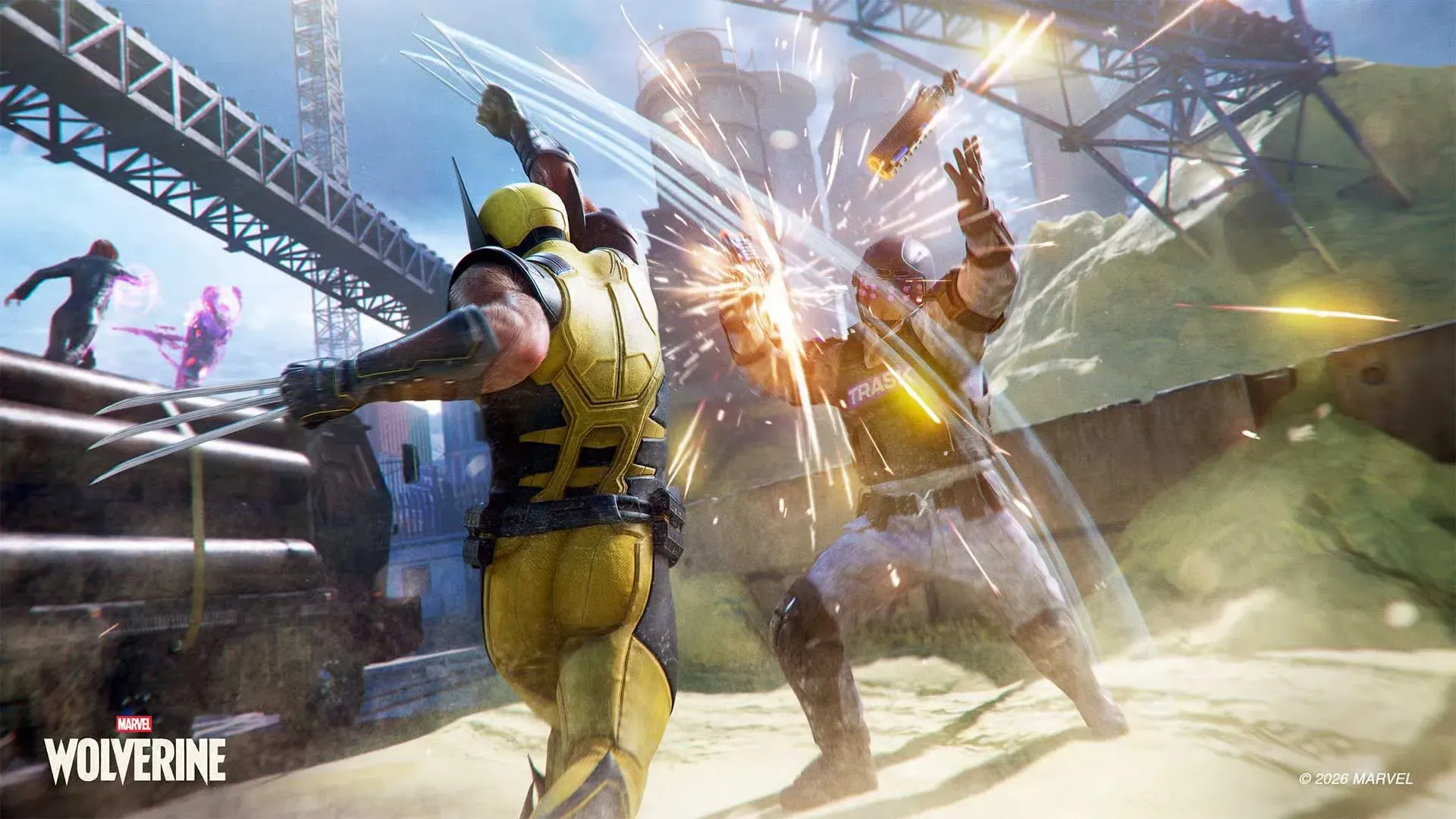
You’ve seen the jaw-dropping cinematics in Marvel’s Wolverine. You want a screenshot of Logan mid-growl, claws out, snow falling around him. Standard advice says hit the pause button, then select photo mode. But pause during a cutscene in this game, and all you get is a “Skip Cinematic” option and a “Restart” button. No photo mode anywhere. The common approach fails.
Here is the fix — and the edge cases where even that fix stumbles.
The only way to get a clean shot is to assign a shortcut beforehand.
Why the Pause Menu Lies to You
Pressing the Options button during any cutscene in Marvel’s Wolverine brings up a stripped-down menu. Insomniac intentionally removed photo mode from that screen. The only way to get a clean shot is to assign a shortcut beforehand. If you haven’t done that, you’re locked out. Full stop.
The One Reliable Trick: Assign a Shortcut
The source material from a Wolverine settings guide confirms this: “go to the accessibility area where you have shortcuts and enable the launch photo mode right over here with the up D-pad button or whatever you want to choose. This allows you to take photos anywhere you want in the entire game. You can even take photos during cut scenes.”
Here are the exact steps:
- Open Settings from the pause menu (not mid-cutscene — do this before you start playing).
- Go to Accessibility > Shortcuts.
- Choose one of the four D-pad slots (up, down, left, or right) and select Launch Photo Mode.
- Exit settings.
Now, during any cutscene, press that D-pad button. The game freezes, Haas effect kicks in, and the full photo mode overlay appears. You can move the camera, tweak depth of field, toggle gore, or switch costumes. Hit circle to exit and the cutscene resumes exactly where it paused.
When Even the Shortcut Stumbles
It works in 95% of cutscenes. But two cases break the rule:
- QuickTime events. If a button prompt appears on screen, photo mode won’t activate. You must wait until the prompt disappears or complete the QTE.
- Extremely short scene transitions. Some scripted camera pans lasting under two seconds — Wolverine walking through a door, for instance — lock the shortcut. The scene ends before the photo mode can load.
In both cases, the solution is patience. Wait half a second after the cutscene settles, then press your shortcut. If it fails, the window was too tight. Reload the checkpoint or restart the cutscene from the cabin menu.
Common Misconceptions vs. Reality
| Misconception | Reality |
|---|---|
| Photo mode is available from the pause menu during cutscenes. | The pause menu hides it. You must use a D-pad shortcut. |
| You can only take photos during gameplay, not cinematics. | The D-pad shortcut works mid-cutscene — even pauses character animations mid-frame. |
| Exiting photo mode skips the cutscene forward. | Pressing circle returns you to the exact same frame. No progress lost. |
Why This Gap Exists
Most guides assume you instinctively go to the pause menu. That instinct is wrong for Marvel’s Wolverine. The design choice forces you to pre-plan. The upside: once the shortcut is set, you can snap shots in the middle of Logan’s most dramatic moments — and the game remembers your clue trail, loot, and story progress. It’s a small inconvenience for a huge payoff.
The real test comes when you want to capture a split-second expression. Practice the shortcut muscle-memory on an earlier cutscene. You’ll nail it before the final act.
- How can I access photo mode during cutscenes in Marvel's Wolverine?Assign a D-pad shortcut to Launch Photo Mode in the Accessibility settings, then press that button during any cutscene.
- Why is photo mode not available from the pause menu during cutscenes?Insomniac intentionally removed photo mode from the cutscene pause menu; you must use a pre-assigned shortcut.
- When does the photo mode shortcut fail in Marvel's Wolverine?The shortcut fails during QuickTime events and extremely short scene transitions under two seconds.