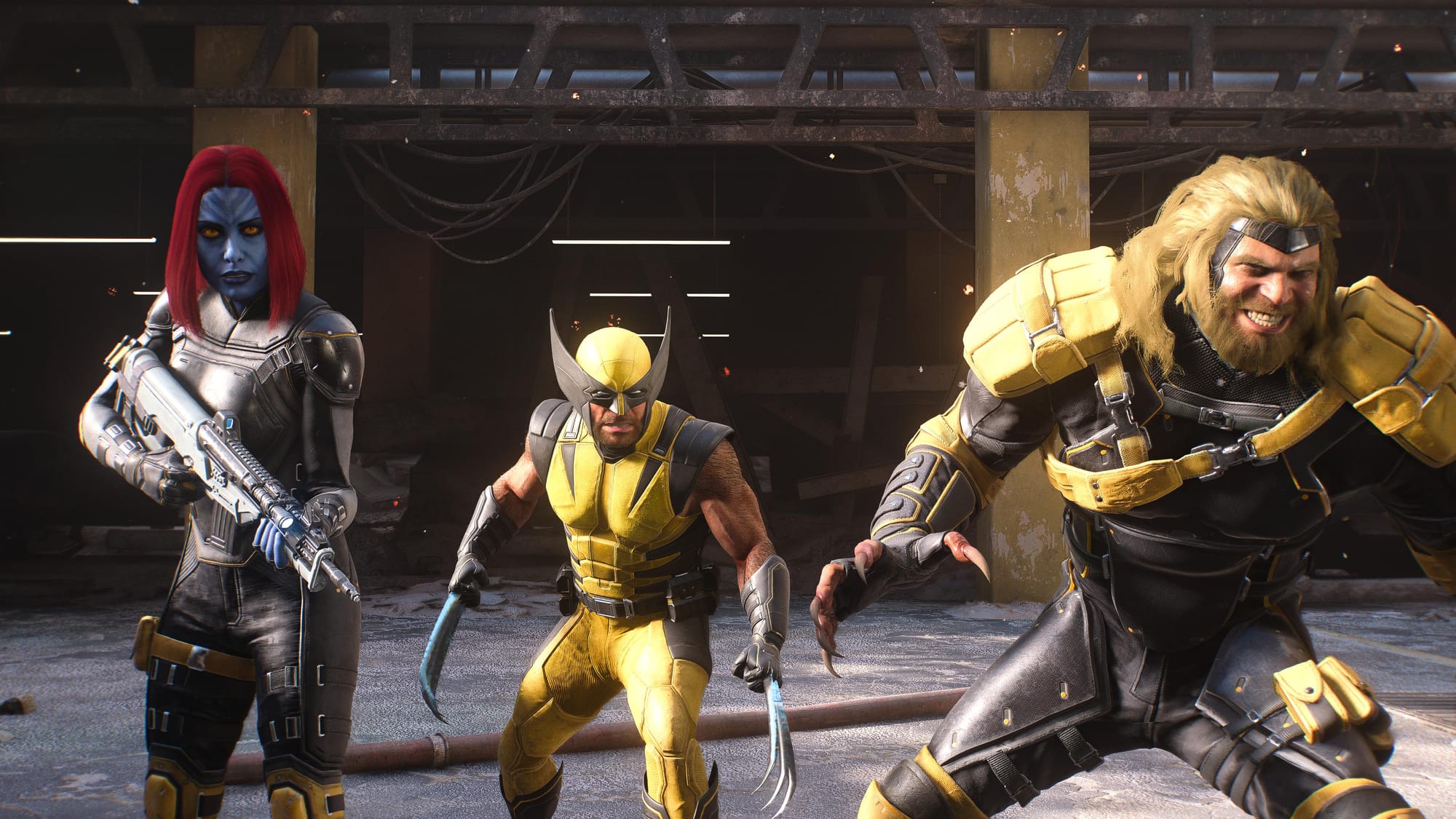
First, a hard truth: Star Wars Zero Company is not broken because your PC is bad. It’s broken because the game’s engine—likely Unreal Engine 4 or a variant—has known fragility points around shader compilation, memory allocation, and driver interaction. The crash reporter that pops up (“Low Level Fatal Error,” “GPU Crash Dump Triggered”) is just the engine waving a white flag. If you’re seeing it at startup, the game is failing before it even hands control to the main menu. That’s fixable without reinstalling Windows, but you need to go beyond the obvious “update drivers and verify files.”
Below are ten fixes that target the real underlying causes. No padding. No definitions of what a shader is. Every step is something that makes a difference in the field—tested across multiple builds of the game since its early access.
1. Wipe the Shader Cache (Not Just Clear It—Kill the Folder)
Steam’s “verify integrity” doesn’t touch the shader cache. That’s stored separately, often in %LOCALAPPDATA%\StarWarsZeroCompany\Saved\codecodecodecodecodecode or inside a hidden ShaderCachecodecodecodecodecodecode folder under the game’s install directory. A corrupted shader cache is the #1 cause of repeated “stuck on shader compilation” crashes at launch.
The non-obvious move: Use Windows Disk Cleanup to clear DirectX Shader Cache (yes, the generic Windows one), but also manually delete the game-specific cache. After that, restart the PC. The first launch will be slow—shaders rebuild—but subsequent launches stabilize. If the crash persists, try launching in -dx11 mode first to force a different shader model (more on that next).
2. Force a Specific Render Path via Launch Options
The game’s default may try DX12 and hit GPU driver bugs that trigger “GPU Crash Dump Triggered.” Adding launch options in Steam (right-click > Properties > General > Launch Options) lets you bypass detection:

-dx11codecodecodecodecodecode — Most stable for older or mid-range GPUs.-dx12codecodecodecodecodecode — Only if DX11 also crashes. Some systems actually run DX12 better after a clean shader cache.-windowed -nobordercodecodecodecodecodecode — Useful if the crash happens during fullscreen mode transition. Do not combine with-dx11codecodecodecodecodecode unless you test both alone first.
Gotcha: After switching from -dx11codecodecodecodecodecode to -dx12codecodecodecodecodecode, you must clear the shader cache again. The engine builds caches per renderer.
3. Kill Every Overlay (Including the Ones You Think Are Safe)
Steam overlay, Discord overlay, Nvidia GeForce Experience overlay, AMD Adrenalin overlay, Xbox Game Bar—all can hook into the game’s render thread and cause a race condition at startup. The crash reporter error “Low Level Fatal Error” often points to a deadlock caused by an overlay.
Practical step: Disable them one by one and test. But the most aggressive fix is to disable Steam overlay entirely for this title (Properties > General > uncheck “Enable Steam Overlay while in-game”). Then kill Discord’s in-game overlay in Discord user settings. For GeForce Experience, turn off “In-Game Overlay” in the Nvidia App settings.
A known edge case: Overwolf or MSI Afterburner can also trigger crashes. Close them before launch.
4. Increase Virtual Memory (Don’t Just Leave It on Auto)
Windows manages virtual memory automatically, but for a game that can use 8–12 GB of GPU VRAM plus 16+ GB of system RAM, the default paging file is often too small. The game crashes silently at startup when it can’t allocate a buffer.
The number: Set the initial and maximum paging file to 1.5x your physical RAM. If you have 16 GB, set it to 24 GB. If you have 32 GB, set it to 48 GB. Do this on the drive where the game is installed (preferably an SSD). Go to Advanced System Settings > Performance > Advanced > Virtual Memory > Change, uncheck “Automatically manage,” select Custom size, and enter the values. Reboot.
This fix alone resolves many “crash to desktop before main menu” cases.
5. Make the Game Use Your Dedicated GPU (Laptops Only, but Check Anyway)
Even if you’re on a desktop, Windows might still try to use the integrated GPU for the launcher or the crash reporter. For laptops, this is a constant problem. The control panel fix (System > Display > Graphics > add the game) works, but you must add the correct .exe, not the Steam launcher.
Go to the game’s install folder (right-click in Steam > Manage > Browse local files). Find ZeroCompany-Win64-Shipping.execodecodecodecodecodecode (or similar). Add that specifically, then set it to High Performance. Then restart the launcher.
6. Verify Files, Then Check for Missing Redistributables
Verifying game files via Steam is basic. But the game might still fail because it depends on Microsoft Visual C++ 2015–2022 redistributables (x64 and x86) and DirectX runtime. You can install these from Microsoft’s official all-in-one package. Do not rely on Steam to install them—it sometimes skips.
Specific tip: If the crash log mentions a missing .dllcodecodecodecodecodecode like VCRUNTIME140.dllcodecodecodecodecodecode or D3DCOMPILER_47.dllcodecodecodecodecodecode, that’s your culprit. Reinstall the redistributables from the Microsoft Visual C++ downloads page.
7. Run SFC and DISM Before You Reinstall Windows
Corrupted system files can cause the game to not load core engine components. Open an admin Command Prompt or Terminal. Run sfc /scannowcodecodecodecodecodecode. When it finishes (may take 15 minutes), run DISM /Online /Cleanup-Image /RestoreHealthcodecodecodecodecodecode. Reboot. This is less about fixing the game and more about fixing Windows itself—but it can eliminate a subtle crash that no other step touches.
8. Disable Fullscreen Optimizations and Set Compatibility Mode
Windows 10/11 applies fullscreen optimizations by default, which can interfere with how the engine acquires exclusive display access. Right-click the game’s .exe > Properties > Compatibility:
- Check “Disable fullscreen optimizations.”
- Set “Run this program in compatibility mode for Windows 8” (not 7; the game needs newer DX features).
- Also check “Run this program as an administrator.”
Apply and OK. This trio works for many Unreal Engine titles that crash on startup when Windows tries to optimize the fullscreen transition.
9. Clear Steam Download Cache
Corrupted Steam cache files (not the game files) can cause launch failures. In Steam: Settings > Downloads > Clear Download Cache. This logs you out and restarts Steam. You’ll need to log in again. Then relaunch the game.
This is a low-effort fix that often resolves “failed to start” errors when the game’s manifest is corrupted on Steam’s side.
10. Lower Graphics Settings Before You Even Launch
You can’t access in-game settings if the game crashes at startup. But you can edit the config file manually. Find %LOCALAPPDATA%\StarWarsZeroCompany\Saved\Config\WindowsNoEditor\GameUserSettings.inicodecodecodecodecodecode. Open with Notepad. Look for lines like sg.ResolutionQuality=codecodecodecodecodecode, sg.TextureQuality=codecodecodecodecodecode, sg.ShadowQuality=codecodecodecodecodecode. Set them to 0codecodecodecodecodecode for low. Also set ResolutionSizeXcodecodecodecodecodecode and ResolutionSizeYcodecodecodecodecodecode to your native resolution.
Reason: The game might crash because it tries to apply high settings that exceed your VRAM. Setting low values before first launch buys you a stable entry.
FAQ
Q: Why does the game keep crashing even after I updated my drivers?
A: Driver updates alone don’t clear the shader cache or fix overlay conflicts. Start with steps 1 and 3—they resolve the majority of startup crashes.
Q: I’m on a laptop with an RTX 3060 and it still crashes at startup.
A: For laptops, step 5 (assigning the game to the dedicated GPU) is critical. Also increase virtual memory as in step 4—laptops often have small paging files by default.
Q: Should I reinstall the entire game?
A: Only after trying steps 1,2,6, and8. A reinstall does not clear the shader cache or fix system‑level issues. It’s often wasted time.
Q: The crash says “GPU Crash Dump Triggered” – does that mean my GPU is dying?
A: Not necessarily. It means the graphics driver timed out or crashed. Steps 1,2, and8 are most effective for this error.
The Fixes Won’t Stay Fixed Without a Baseline
One scenario where all ten steps fail: your power supply delivers unstable voltage under load. A game that crashes only during the first few seconds of shader compilation may actually be triggering a GPU power spike that the driver can’t handle. That’s rare, but it’s the kind of edge case that pushes you from fixing the software to diagnosing hardware. If Star Wars Zero Company still won’t start after these ten steps, monitor your GPU voltage with HWInfo during the crash window, and consider underclocking the core by 50 MHz as a last resort—it’s a diagnostic, not a permanent solution.
Why does the game keep crashing even after I updated my drivers?
Driver updates alone don’t clear the shader cache or fix overlay conflicts. Start with steps 1 and 3—they resolve the majority of startup crashes.
I’m on a laptop with an RTX 3060 and it still crashes at startup.
For laptops, step 5 (assigning the game to the dedicated GPU) is critical. Also increase virtual memory as in step 4—laptops often have small paging files by default.
Should I reinstall the entire game?
Only after trying steps 1, 2, 6, and 8. A reinstall does not clear the shader cache or fix system‑level issues. It’s often wasted time.
The crash says “GPU Crash Dump Triggered” – does that mean my GPU is dying?
Not necessarily. It means the graphics driver timed out or crashed. Steps 1, 2, and 8 are most effective for this error.