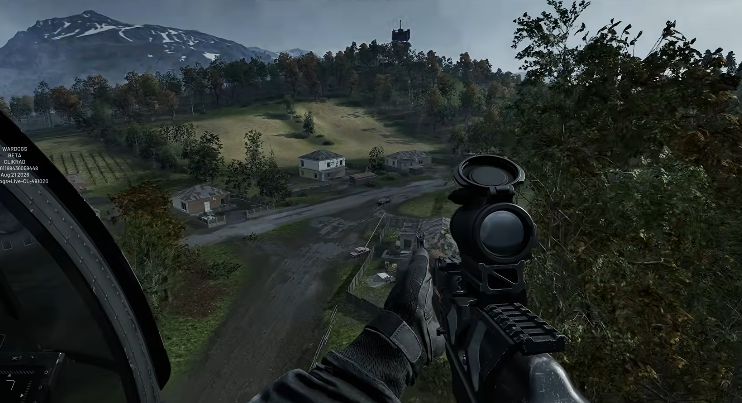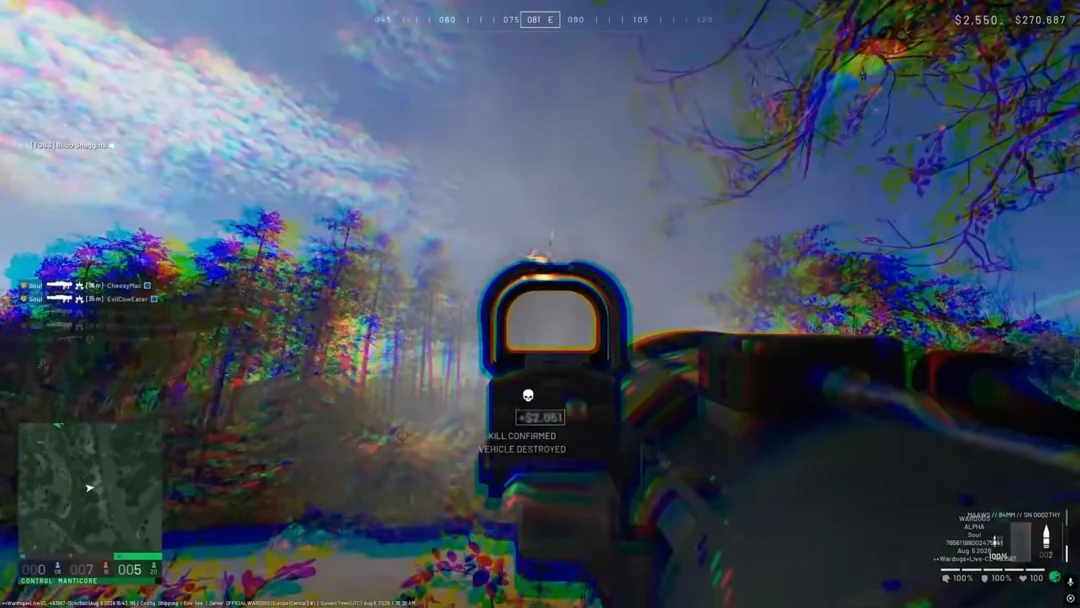
You know the drill. You load in, the match starts, you sprint toward that jeep or APC, and the moment the “Enter Vehicle” prompt appears, the screen freezes for half a second, then black. Desktop. Crash report. Or worse, a full restart with that Windows “we recovered from an unexpected error” message waiting for you.
The obvious advice is everywhere: update drivers, verify files, reinstall. You’ve probably done all of that already, and you’re still crashing. So let’s skip the basics and get into what actually works when WARDOGS refuses to handle vehicle transitions.
The root cause is rarely the game itself. It’s almost always a conflict between the anti-cheat kernel driver and something else running at ring 0 on your system. Vehicles are just the trigger because they load a burst of assets and spawn physics processes that other games don’t touch.
The Event Viewer Tells You Exactly What to Kill
Before you change anything, reproduce the crash. Get into a vehicle, let it happen, and immediately open Event Viewer. Don’t wait. Windows logs the crash within seconds.
Navigate to Windows Logs → System and look for the red exclamation mark entries stamped right at the crash time. The source will typically be something like “BugCheck” or “Kernel-Power 41” if it’s a full restart, but what you’re hunting for is the process name buried in the error details.

In the last beta, the culprit was inputx64.syscodecodecodecode — an RGB lighting process that ships with certain peripheral software. WARDOGS’ anti-cheat flags it as a conflict, and the kernel-level check fails when you hit a vehicle’s physics load. The game crashes because the anti-cheat thinks something is tampering with the process, not because the vehicle itself is broken.
Here’s the part nobody tells you: the fix is to stop that process from auto-starting, not just kill it once.
The Two-Command Disable That Actually Sticks
Open Command Prompt as administrator. Not PowerShell, not Terminal — the legacy Command Prompt. Then run these two commands in order:
“`
sc stop inputx64
sc config inputx64 start= disabled
“`
The first stops the running process. The second tells Windows never to start it again on boot. You should see “SUCCESS” after each one.
Restart your PC, then verify with this:
“`
sc query inputx64
“`
If it says STATE: 1 STOPPEDcodecodecodecode, you’re done. If it says RUNNINGcodecodecodecode, the process respawned and you need to check if there’s a scheduled task or a service dependency forcing it back. Some RGB software has watchdog services that restart disabled drivers, so you may need to disable those too.
The same crash pattern appeared in The Finals a few months back, and the developers actually recommended deleting the file entirely. I didn’t go that far — I disabled it, and after the restart, I went from crashing every few seconds to 24-plus hours of play without a single vehicle-related crash.
When the Crash References a Windows Update, Not a Driver
You check Event Viewer and the red entry points to ntoskrnl.execodecodecodecode or a generic 0x00000050codecodecodecode page fault. That’s a different animal. In August, a Windows security update broke kernel-level anti-cheat compatibility across multiple games, not just WARDOGS. If your crash started after a recent update, you have two paths.
First, try Windows Settings → Windows Update → Update History → Uninstall Updates. Remove the most recent quality update, restart, and test. This is the blunt approach — it works, but you lose security patches, so don’t sit on this state for long.
The smarter route: check if the update is the one from mid-August (KB numbers around that timeframe) and wait for Microsoft to ship the fix. They usually do within a week or two. In the meantime, the disabled input process trick above often sidesteps the problem entirely because the crash is triggered by the anti-cheat’s interaction with that driver, not the update itself.
Driver Clean Install: The Version You Actually Need
Everyone says “update your drivers.” Nobody tells you that a standard update over an existing install can leave stale remnants that cause exactly these vehicle-entry crashes.
Go to the Nvidia or AMD site, download the latest Game Ready driver for your exact card model and OS version, but when you run the installer, select Custom Installation and check Perform a Clean Installation. This wipes all previous driver layers and installs fresh.
Here’s the comparison that matters:
| Approach | Crash Likelihood After | Time Cost | Risk Level |
|---|---|---|---|
| Express install over old driver | High — stale files remain | 5 minutes | Low |
| Clean install via Nvidia/AMD installer | Medium — fixes most GPU conflicts | 15 minutes | Low |
| Clean install + disabled inputx64 process | Low — addresses both GPU and anti-cheat conflicts | 20 minutes | Low |
| Full Windows reinstall | Low, but overkill | 2+ hours | High — data loss risk |
The third option is the sweet spot. Most people stop at the clean driver install and wonder why they still crash. The driver wasn’t the problem. The kernel process was.
Windows Settings That Matter for Vehicle Physics
Disable transparency effects in Personalization → Colors. Turn off Game Bar entirely under Settings → Gaming. Enable Game Mode. These are the standard tweaks, and they help a little — maybe a 5-10% performance bump in busy scenes. But here’s the non-obvious one: check your Virtual Memory.
Vehicle entry loads a lot of assets at once. If your page file is set to a fixed small size or disabled on the drive where the game is installed, the sudden memory spike causes a hard fault that can crash the anti-cheat. Set the page file to System Managed on the same drive as WARDOGS, restart, and try again.
I’ve seen this fix crashes that survived every driver update and process disable. It’s the one thing nobody checks because it feels too old-school, but it’s still relevant.
When to Move the Game to Another Drive
If you’ve done all of the above and vehicles still crash, you might be dealing with a storage issue. Uninstall WARDOGS, then reinstall it on a different drive — preferably an NVMe SSD if you have one. The game’s asset streaming during vehicle spawns is aggressive, and a slower or failing HDD can cause read stalls that trigger the anti-cheat’s timeout.
This isn’t a sure thing. It’s a “I’ve seen it work in specific cases” fix. But it costs you an hour and a half, and it’s a legitimate variable to eliminate.
What to Do When Nothing Works
Check if your BIOS is current. Go to your motherboard manufacturer’s site, find your exact model, and update if there’s a newer version. This is genuinely risky on laptops — make sure the battery is charged and the AC adapter is connected before you start. A failed BIOS flash bricks the machine. Only do this as a last resort.
After every single step in this guide, restart your PC. Not sleep, not hibernate — a full restart. Kernel changes don’t apply cleanly without one, and testing without restarting will give you false results.
The vehicle crash in WARDOGS is almost never about the vehicle. It’s about the tension between anti-cheat and your system’s background processes, and vehicles just happen to be the stress test that exposes it. Start with the Event Viewer, disable the offending process, and work your way down the list.
One thing I’ll add: if your crash log shows a different process name than inputx64.syscodecodecodecode, don’t assume this guide doesn’t apply. The pattern is identical — a kernel-level driver conflicting with the anti-cheat. Find the process, disable it, and test. The specific name matters less than the approach.