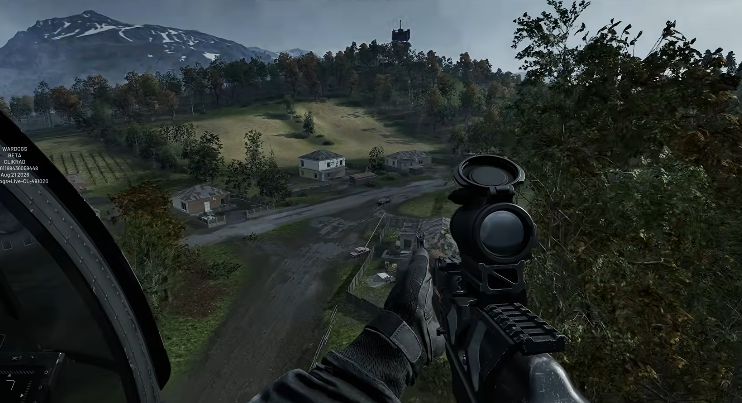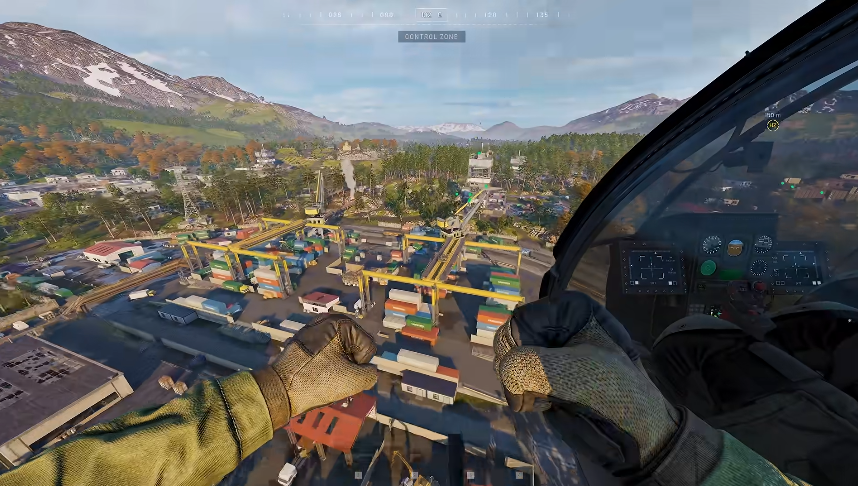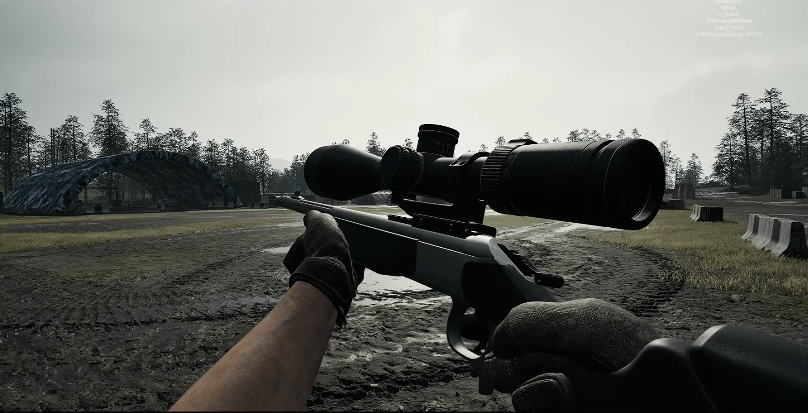
Everyone says the same thing when WARDOGS won’t launch or keeps crashing. Update your drivers. Verify game files. Reinstall the whole thing. And sure, sometimes that works. But there’s a deeper problem hiding in plain sight, one that a fresh install won’t touch, and I learned this the hard way after two days of pure frustration.
The real culprit behind most WARDOGS crashes on PC isn’t the game files at all. It’s a Windows security update from August 12th that’s been wreaking havoc on kernel-level anti-cheat processes. The game’s anti-cheat clashes with a background process called inputx64.syscodecodecodecodecodecode — something tied to RGB lighting software — and the result is crashes so frequent you can’t even sit in a queue without the whole system restarting.
Here’s the thing nobody tells you: uninstalling and reinstalling WARDOGS doesn’t fix this, because the problem lives outside the game entirely. It lives in your Windows configuration. And the fix requires poking around in places most guides skip entirely.
So before you nuke your installation and waste an afternoon re-downloading gigabytes, try the steps below. They’re ordered by likelihood of success, and they address the actual root cause rather than the symptoms.
The Event Viewer Tells You Everything — If You Know Where to Look
The moment WARDOGS crashes, open the Event Viewer. Not later. Not after you’ve restarted your PC three times and forgotten the sequence of events. Right after the crash.

Here’s how: press Windows Key, type “Event Viewer,” and hit enter. Navigate to Windows Logs → System. Look for a red exclamation mark — not the yellow warnings, the red ones. That entry will name the exact process that caused the crash.
In my case, it was inputx64.syscodecodecodecodecodecode. That’s an RGB lighting process, likely tied to your motherboard or peripheral software. It’s safe to disable. The same issue hit players in The Finals, another game with aggressive anti-cheat, and the developers there recommended deleting the process entirely.
I didn’t delete mine. I disabled it instead, because I’m cautious about removing system-level files I don’t fully understand. And it worked. I went from crashing every few seconds — even in the firing range, even sitting in a queue — to playing 24 to 26 hours straight with zero crashes.
Disabling the Problem Process Without Deleting It
If you want to disable inputx64.syscodecodecodecodecodecode without removing it permanently, you’ll need to use Command Prompt with administrator privileges. This is the step most guides gloss over, and it’s the one that actually solved my problem.
Open Command Prompt as admin (right-click the Start button, select “Terminal (Admin)” or “Command Prompt (Admin)”). Then run these two commands, one at a time:
“`cmd
sc stop inputx64
sc config inputx64 start= disabled
“`
The first command stops the process immediately. The second prevents it from auto-starting when you boot your PC. After running both, you should see a “SUCCESS” message for each.

Now restart your PC — this part is non-negotiable. After the restart, open Command Prompt again and run this to verify:
“`cmd
sc query inputx64
“`
If it says “STOPPED,” you’re done. If it says “RUNNING,” you’ll need to repeat the two commands above. Once it’s confirmed stopped, launch WARDOGS and play as much as you want. The crashes should be gone.
What If Your Crash Process Is Different?
The Event Viewer might name a different file. That’s fine — the process is the same. Look for anything ending in .syscodecodecodecodecodecode that’s tied to input devices or RGB software. The Windows security update from August 12th affects multiple games and multiple kernel-level processes, so your specific crash cause could differ slightly.
The key is identifying what the Event Viewer tells you and disabling that specific process. Don’t guess. Don’t disable things randomly. Let Windows tell you exactly what’s breaking, then neutralize just that.
The Standard Fixes Still Matter — But in a Different Order
Here’s where I push back on conventional wisdom. Everyone jumps straight to “verify game files” or “reinstall the game.” Those steps have their place, but they’re not the first thing you should try when WARDOGS crashes with a kernel-level process error. They’re the last resort, not the opening move.
That said, there’s a specific sequence that covers the bases without wasting hours:
| Step | What It Fixes | Time Investment | Success Rate |
|---|---|---|---|
Disable inputx64.syscodecodecodecodecodecode via Command Prompt |
Kernel-level crash loop, constant restarts | 10 minutes | Highest for crash-on-launch issues |
| Update GPU driver with clean install | Visual glitches, FPS drops, rendering crashes | 20 minutes | Moderate for performance issues |
| Run game in Windows 8 compatibility mode | Legacy DirectX conflicts, launcher failures | 5 minutes | Low but worth trying |
| Verify game files in Steam | Corrupted or misplaced game data | 15-30 minutes | Low for kernel crashes, high for missing file errors |
Notice what’s not on that list? Full reinstall. Because if the crash is caused by a Windows update clashing with your anti-cheat, reinstalling WARDOGS changes nothing. The conflict is at the system level, not the game level.

Updating Your GPU Driver the Right Way
If disabling the process doesn’t solve it, the next step is a clean GPU driver installation. Most people click “Update” and call it done. That’s not enough. A standard update can leave remnants of the old driver behind, and those remnants can cause the exact crashes you’re trying to fix.
For Nvidia users: open the Nvidia app and check your drivers. A Game Ready driver released on September 9th, the day before WARDOGS launched — if you don’t have it, that’s a problem. Install it, but don’t do a standard install.
Select the custom installation option, then check the box labeled “Perform a clean installation.” This wipes all traces of the previous driver before installing the new one. It takes longer, but it’s the difference between a band-aid and a proper fix.
After the clean install, restart your PC. Then launch WARDOGS and see if the crashes persist.
AMD users aren’t left out. Head to the AMD website, select your graphics card model and operating system, and download the latest driver. The same clean install principle applies — look for the option that wipes previous driver versions.
Windows Settings That Actually Matter for WARDOGS
Beyond the driver and the kernel process, there are Windows settings that can make or break your WARDOGS experience. These won’t fix a crash loop on their own, but they’ll reduce stutter and improve stability once the game actually runs.
Open Windows Settings and head to Personalization → Colors. Disable transparency effects. This removes unnecessary animations that eat system resources in the background. It’s a small gain, but every bit helps when you’re chasing stable frame rates.
Next, go to Gaming → Game Bar and turn it off entirely. Game Bar is an overlay service that runs constantly in the background, consuming resources even when you never open it. For most players, it’s dead weight. Kill it.
Then go to Gaming → Game Mode and turn it on. Game Mode optimizes your PC by suspending background processes while you play, freeing up resources for WARDOGS. This one’s a genuine boost, not a placebo.
After making these changes, restart your PC. Then test the game.

When All Else Fails: The Windows Update Dance
Sometimes the August 12th security update isn’t just clashing with a single process. Sometimes it’s breaking multiple things at once, and disabling one process isn’t enough.
If that’s your situation, you have two options. First, make sure Windows is fully updated. Go to Windows Update and check for pending updates. Install everything, restart, and test WARDOGS again.
If the game still crashes, the opposite approach might work: uninstall the recent update that started the problem. Go to Windows Update → Update History → Uninstall Updates. Look for updates installed around August 12th and remove them. Restart your PC, then test the game.
This is a trade-off. Uninstalling a security update leaves your system slightly less protected. But if it’s the difference between a playable game and a crash loop, most players will take that trade. Keep in mind you can always reinstall the update later once a proper fix rolls out.
A Quick Note on BIOS Updates
If you’re still crashing after all this, consider updating your BIOS. Go to your system manufacturer’s website, find your model number, and download the latest BIOS version. This is a more serious step — a failed BIOS update can brick your system — so follow the instructions carefully.
For laptop users: make sure your battery is charged and your AC adapter is connected before starting a BIOS update. A power failure mid-update is catastrophic.
This is a last resort, not a first move. Only attempt it if you’re comfortable with the risk and nothing else has worked.
The Reinstall Question: When It Actually Helps
I said reinstalling WARDOGS won’t fix a kernel-level crash. That’s true. But there’s one scenario where it helps: if you have multiple drives and the game is installed on a failing or struggling one.
Here’s the logic. If WARDOGS is installed on a drive with bad sectors or failing hardware, the game will crash during loading, during gameplay, and seemingly at random. Reinstalling to a different drive — preferably an SSD if you have one — can resolve issues that have nothing to do with software.
To do this: right-click WARDOGS in Steam, go to Manage → Uninstall. Then reinstall and select a different drive during installation. It’s a simple move, and I’ve seen it help with persistent crashes that defied every other fix.

But don’t do this first. Do it after you’ve ruled out the kernel process, the drivers, and the Windows settings. Otherwise you’re just wasting bandwidth on a problem that lives elsewhere.
My Experience: From Crash Loop to 26 Hours of Clean Play
I want to be clear about what this fix did for me. Before disabling inputx64.syscodecodecodecodecodecode, WARDOGS crashed constantly. Every few seconds, sometimes even when I wasn’t in an active game. Sitting in a queue? Crash. Firing range? Crash. It was unplayable, and I was ready to write the game off entirely.
After running the two Command Prompt commands and restarting, the difference was night and day. I played 24 to 26 hours over the following days without a single crash. Not one. The game that was crashing every few seconds became a stable, playable experience.
That’s why I’m so adamant about checking the Event Viewer first. The answer was there the whole time, hiding in a red exclamation mark. I just had to know where to look.
If your WARDOGS experience matches mine — constant crashes, immediate restarts, no obvious trigger — skip the reinstall and go straight to the Event Viewer. The fix is faster, cheaper, and addresses the actual problem instead of the symptoms.
And if none of these steps work for you, check the Event Viewer after each crash attempt and see if the error changes. That’ll tell you whether you’re dealing with the same issue or something unique to your system. Then comment below with what you find — someone out there has almost certainly hit the same problem and figured out a workaround.