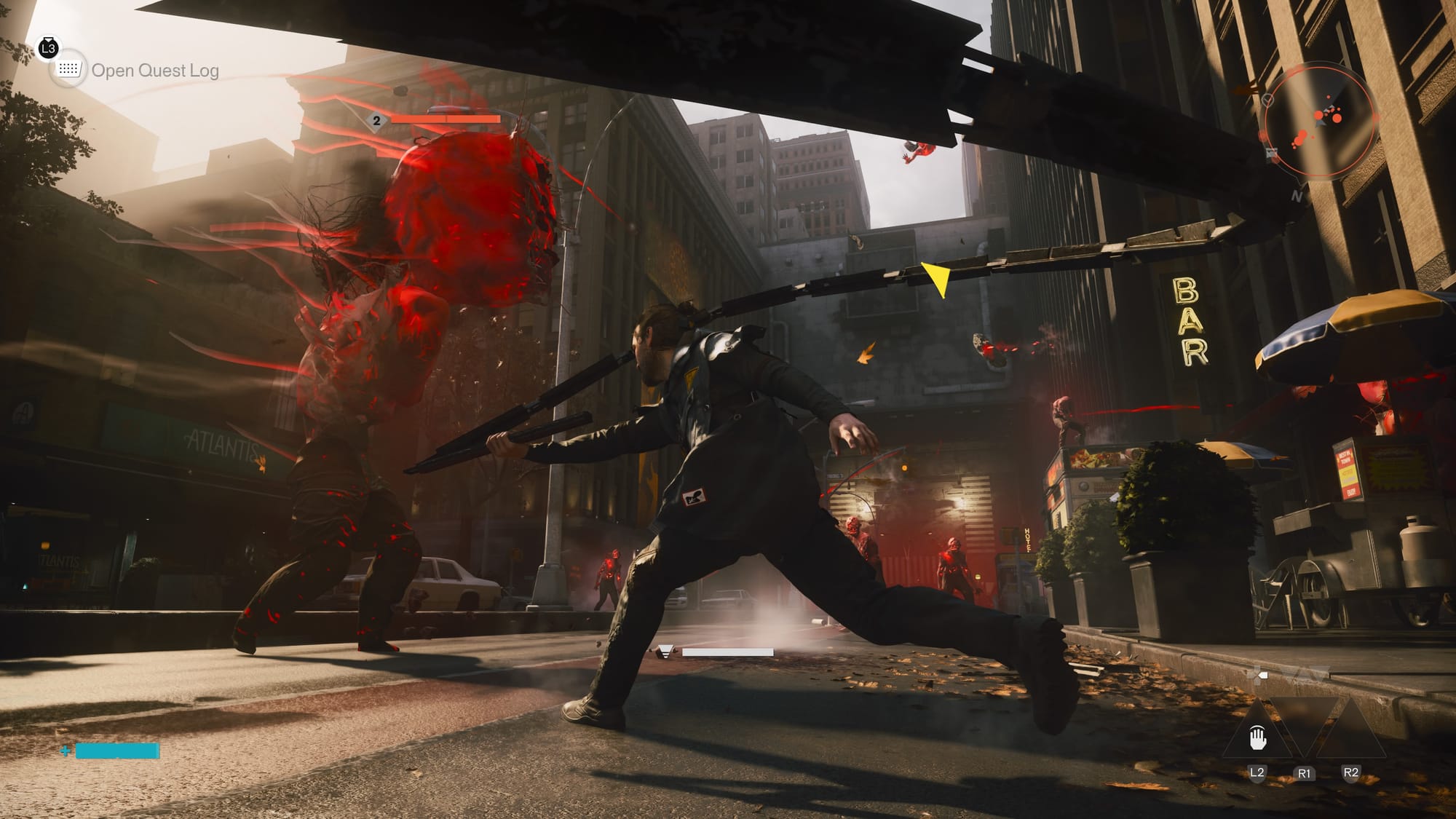
Few things ruin gaming momentum like a sudden Directive 8020 crash to desktop (CTD) right in the middle of an intense moment. Unlike startup crashes, CTD errors occur after the game has already launched — sometimes within minutes, other times after hours of play. These random or triggered crashes often point to different underlying causes: memory leaks, overheating, corrupted save files, unstable GPU drivers, or even background applications conflicting with the game engine. In this guide, we’ll focus specifically on diagnosing and eliminating crash-to-desktop issues for Directive 8020 on Windows PCs and Steam Deck. You’ll learn how to isolate the culprit, apply targeted fixes, and finally enjoy uninterrupted gameplay.
1. Identify the Crash Pattern
Before applying any fix, pay attention to when the crash occurs:
- Crashes during loading screens → Often related to corrupted game files or insufficient RAM/VRAM.
- Crashes during specific missions or areas → May indicate corrupted save files or a specific game asset bug.
- Crashes after 10-30 minutes of gameplay → Usually overheating, memory leaks, or unstable GPU overclock.
- Random crashes at any moment → Likely driver issues, background applications, or faulty RAM.
Write down when the crash happens. This will help you skip irrelevant fixes and target the real cause faster.
2. Check Windows Event Viewer for Crash Logs
Windows keeps a detailed log of every application crash. This can pinpoint the exact DLL or module causing Directive 8020 to fail.
- Press Windows key + X → select Event Viewer.
- Expand Windows Logs → click Application.
- Look for Error events with “Directive 8020” or the game’s executable name in the Source column.
- Double-click the error → read the Faulting module name (e.g.,
nvwgf2umx.dllcodecodecodecodecodecode for NVIDIA,atio6axx.dllcodecodecodecodecodecode for AMD,ucrtbase.dllcodecodecodecodecodecode for C++ issues).
Common fault modules and their fixes:

nvwgf2umx.dllcodecodecodecodecodecode /atio6axx.dllcodecodecodecodecodecode → Update or roll back GPU drivers.ucrtbase.dllcodecodecodecodecodecode /msvcrt.dllcodecodecodecodecodecode → Reinstall Visual C++ Redistributables.kernel32.dllcodecodecodecodecodecode /ntdll.dllcodecodecodecodecodecode → Run System File Checker (sfc /scannowcodecodecodecodecodecode in Command Prompt as admin).gameoverlayrenderer64.dllcodecodecodecodecodecode → Disable Steam/Discord overlays.
3. Update or Roll Back GPU Drivers
Crash to desktop is often triggered by buggy GPU drivers — especially right after a new game update or Windows update.
Option A: Clean install of latest drivers
- Download Display Driver Uninstaller (DDU) and your latest GPU driver.
- Boot Windows in Safe Mode → run DDU to completely remove old drivers.
- Reboot normally → install the fresh driver.
Option B: Roll back to a stable older driver
- If crashes started after a driver update, roll back:
- Device Manager → Display adapters → right-click GPU → Properties → Driver tab → Roll Back Driver (if available).
- For NVIDIA, try Studio Drivers instead of Game Ready drivers — they are often more stable.
4. Monitor CPU and GPU Temperatures
Overheating can cause sudden shutdowns of the game (or entire system) to prevent hardware damage.
- Download HWMonitor, MSI Afterburner, or Open Hardware Monitor.
- Run the game and play until a crash occurs (or for 20 minutes).
- Check maximum temperatures:
| Component | Safe Temp | Danger Zone (crashes likely) |
|---|---|---|
| CPU | Under 85°C | Over 95°C |
| GPU | Under 85°C | Over 90°C |
If temperatures are too high:
- Clean dust from fans and heatsinks.
- Improve case airflow (add fans, open side panel temporarily).
- Reapply thermal paste on CPU/GPU (advanced users).
- Reduce in-game graphics settings (especially shadows and reflections).
- Cap framerate to reduce GPU load (use VSync or RivaTuner).
5. Disable Background Applications (Especially RGB Software)
Many background apps inject code into running games, causing instability. Common culprits:
- RGB control software: Corsair iCUE, Razer Synapse, RGB Fusion, ASUS Aura, MSI Mystic Light
- Recording/streaming apps: OBS, Nvidia ShadowPlay, Xbox Game Bar
- Hardware monitors: MSI Afterburner (try disabling OSD/RivaTuner), EVGA Precision
- Browser with hardware acceleration: Chrome, Edge, Firefox (close them completely)
How to test:
- Press Ctrl + Shift + Esc to open Task Manager.
- Go to Startup tab → disable all non-Microsoft services.
- Restart your PC → launch only Steam and Directive 8020.
- If crashes stop, re-enable apps one by one to find the conflict.
6. Repair or Delete Corrupted Save Files
Corrupted save files are a surprisingly common cause of mid-game crashes, especially when loading specific areas or after autosave events.
Locate your save files (typical locations):
C:\Users\[YourUserName]\Documents\My Games\Directive8020\SavescodecodecodecodecodecodeC:\Users\[YourUserName]\AppData\Local\Directive8020\Saved\SaveGamescodecodecodecodecodecode
Steps:

- Back up the entire Saves folder to your desktop.
- Delete the most recent save file (or move it elsewhere).
- Launch the game and try loading an older save.
- If the crash stops, your recent save was corrupted.
Advanced fix: Some games allow save file repair via Steam Cloud. Disable Steam Cloud temporarily (Propertiescodecodecodecodecodecode → Generalcodecodecodecodecodecode → uncheck Keep games saves in Steam Cloudcodecodecodecodecodecode), delete local saves, then re-enable and sync.
7. Increase TDR (Timeout Detection and Recovery) Value in Registry
If your GPU takes too long to respond (common with demanding scenes or overclocked cards), Windows resets the driver — causing a crash to desktop without a full system freeze.
Fix: Increase TDR delay to 10 seconds
- Press Windows + R → type
regeditcodecodecodecodecodecode → press Enter. - Navigate to:textHKEY_LOCAL_MACHINE\SYSTEM\CurrentControlSet\Control\GraphicsDrivers
- Right-click on right panel → New → DWORD (32-bit) Value.
- Name it
TdrDelaycodecodecodecodecodecode. - Double-click → set Value data to
10codecodecodecodecodecode → Decimal selected. - Also create
TdrDdiDelaycodecodecodecodecodecode → set value to10codecodecodecodecodecode. - Restart your PC.
This gives your GPU more time to complete complex rendering tasks before Windows intervenes.
8. Test Your RAM for Errors (MemTest86)
Faulty RAM causes random application crashes, blue screens, and game CTDs. Directive 8020 may crash while other games run fine if the error only triggers under specific memory usage patterns.
How to test:
- Download MemTest86 (free) onto a USB drive.
- Boot from the USB (may need to change BIOS boot order).
- Let it run for at least 2 full passes (can take 1-2 hours).
- Any red errors? Replace your RAM stick.
Quick alternative (Windows):
- Press Windows key → type
Windows Memory Diagnosticcodecodecodecodecodecode → run it → choose Restart now and check for problems.
9. Lower Specific Graphics Settings (Not Everything)
Some graphics settings are notorious for causing instability in certain game engines. Instead of lowering everything, target these specific culprits:
| Setting | Recommended Adjustment |
|---|---|
| Shadows | High → Medium or Low |
| Reflections | Ultra → High or Medium |
| Texture Quality | Maximum → High (reduces VRAM usage) |
| Anti-aliasing | MSAA x8 → FXAA or TAA (or Off) |
| Ray Tracing | Disable completely (if available) |
| Volumetric Clouds | High → Low |
How to test:
- Change one setting at a time.
- Play for 30 minutes.
- If no crash, move to the next setting.
10. Disable Mods (If Applicable)
If you have installed any mods for Directive 8020 — even small tweaks like reshades, UI mods, or unofficial patches — they can cause crashes after game updates.

Steps:
- Temporarily move all mod files out of the game directory.
- Verify game files via Steam (right-click → Properties → Installed Files → Verify).
- Launch the game without mods.
- If crashes stop, add mods back one by one to find the problematic one.
11. Increase Virtual Memory (Already Covered in Article 1)
Crash to desktop can also occur when Windows runs out of virtual memory. Refer to the Bonus: Change Virtual Memory section in the previous article — the same values (12288 MB initial / 24576 MB maximum) apply here.
12. Disable Windows Game Mode and Hardware-Accelerated GPU Scheduling
Some Windows features intended to improve gaming can actually cause crashes.
Disable Game Mode:
- Settings → Gaming → Game Mode → Turn OFF.
Disable Hardware-Accelerated GPU Scheduling (HAGS):
- Settings → System → Display → Graphics → Change default graphics settings.
- Turn OFF Hardware-accelerated GPU scheduling.
- Restart your PC.
Many users report that disabling HAGS eliminates random CTDs in Unreal Engine and Unity games.
13. Perform a Clean Boot (Eliminate Software Conflicts)
A clean boot starts Windows with only essential services. This is the most effective way to rule out software conflicts.
- Press Windows + R → type
msconfigcodecodecodecodecodecode → press Enter. - Go to Services tab → check Hide all Microsoft services → click Disable all.
- Go to Startup tab → click Open Task Manager → disable all startup items.
- Restart your PC.
- Launch Steam and Directive 8020.
If crashes stop: A background service or startup app was the cause. Re-enable services in batches until you find the culprit.
14. Reinstall the Game (Last Resort)
If you’ve tried everything above and Directive 8020 still crashes to desktop:
- Uninstall via Steam (right-click → Manage → Uninstall).
- Delete leftover folders manually:
- Game install folder (Steam\steamapps\common\Directive8020)
- Config folders in
Documents\My Gamescodecodecodecodecodecode andAppData\Localcodecodecodecodecodecode
- Restart your PC.
- Reinstall the game on an SSD if possible.
- Test before adding any mods or custom settings.
Stopping Directive 8020 from crashing to desktop requires patience and systematic testing. Start by identifying your crash pattern and checking Windows Event Viewer for clues. Most CTD issues fall into a few categories: GPU driver problems, overheating, corrupted saves, background software conflicts, or insufficient virtual memory. Work through the solutions in order — from simplest (updating drivers, disabling overlays) to more advanced (TDR registry tweaks, RAM testing, clean boot). In most cases, one of these 14 fixes will eliminate the crash and let you enjoy Directive 8020 without interruption.