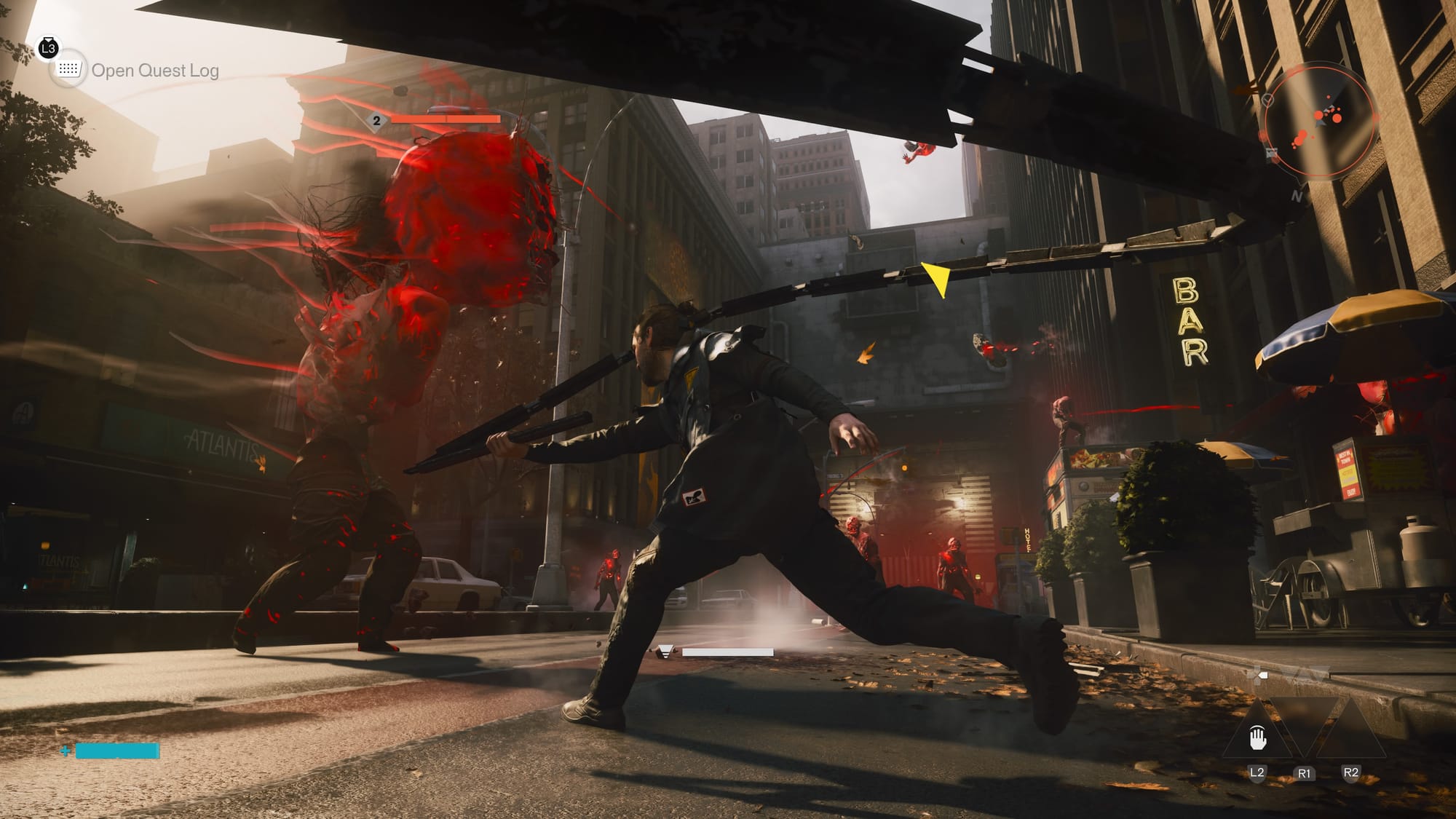
Few gaming problems are more disruptive than random freezing and stuttering in Directive 8020. Unlike steady low FPS — which at least remains playable — freezes bring your game to a complete halt for seconds at a time, often followed by a crash or forcing you to use Task Manager. Stuttering, on the other hand, manifests as micro-hiccups, where the image jumps or skips frames every few seconds, ruining immersion and making precise movements impossible. These issues are typically not caused by weak hardware alone. Instead, they stem from specific bottlenecks: shader compilation stutter, texture streaming delays, CPU spikes from background processes, insufficient VRAM, or even Windows memory management bugs. In this guide, we’ll focus exclusively on diagnosing and eliminating freezing and stuttering in Directive 8020 on Steam/PC, using targeted fixes that address the root causes rather than just lowering settings.
1. Identify the Type of Stutter You’re Experiencing
Not all stutters are the same. Identifying the pattern tells you exactly what to fix.
| Stutter Type | What It Looks Like | Likely Cause |
|---|---|---|
| Shader Compilation Stutter | First time you see an enemy, open a door, or use an ability → game freezes for 0.5-2 seconds. Same spot never stutters again. | Game compiling shaders on-the-fly |
| Asset Streaming Stutter | Moving quickly through open areas → small stutter every few seconds as new textures load. | HDD or slow SSD, low VRAM |
| CPU Spike Stutter | Random stutters even when standing still. Happens every 10-60 seconds. | Background processes, Windows services, antivirus |
| GPU Stutter | Frame rate drops dramatically during explosions or many enemies. | GPU overheating, power limit, driver issue |
| Memory Leak Freeze | Game runs fine for 20-40 minutes, then gradually becomes slower until it freezes completely. | RAM or VRAM filling up |
How to diagnose: Play for 15 minutes while monitoring with MSI Afterburner + RivaTuner. Watch the frametime graph. Small, consistent spikes indicate shader/asset stutter. Large, random spikes indicate CPU/background interference.
2. Force Shader Compilation Before Gameplay (Prevent First-Time Stutters)
Directive 8020 may compile shaders during gameplay rather than beforehand. This causes micro-freezes the first time you encounter anything new.
Fix 1: Enable Steam Shader Pre-Caching

- Steam → Settings → Shader Pre-Caching.
- Check ✅ Enable Shader Pre-Caching.
- Check ✅ Allow background processing of Vulkan shaders.
- Restart Steam and let it download shader caches before launching the game.
Fix 2: Look for in-game shader compilation option
- Some games have a “Compile Shaders on Startup” option in graphics settings. Enable it.
- If available, let it run to 100% before playing.
Fix 3: Force shader compilation by revisiting areas
- If the game lacks pre-compilation, intentionally go to different areas, use different weapons, and trigger different effects early in your session. Each trigger compiles the shader permanently.
3. Increase NVIDIA Shader Cache Size (NVIDIA Users)
NVIDIA’s default shader cache is only 4GB — too small for modern games like Directive 8020.
- Right-click desktop → NVIDIA Control Panel → Manage 3D settings.
- Go to Global Settings tab (or Program Settings for Directive 8020).
- Find Shader Cache Size → change from “Driver Default” (4GB) to 10 GB or Unlimited.
- Click Apply → restart your PC.
What this does: Allows your system to store more compiled shaders, so you rarely (or never) experience shader stutter after the first play session.
4. Move Game to SSD (Eliminate Asset Streaming Stutter)
If Directive 8020 is installed on an HDD, asset streaming stutter is almost guaranteed.
Why: HDDs take 50-200ms to load textures. SSDs take 0.1-0.5ms.
How to move (Steam):
- Steam → Settings → Storage.
- Locate Directive 8020 → check which drive it’s on.
- If not on SSD → select game → click Move → choose your SSD.
- Wait for transfer → launch game.
Pro tip: Even a SATA SSD (not just NVMe) eliminates most streaming stutter. If you don’t have an SSD, consider buying one — it’s the single best upgrade for gaming performance.
5. Adjust Texture Streaming Settings (Low VRAM Fix)
If your GPU has 4GB or less VRAM, texture streaming stutter occurs when VRAM fills up and the game swaps textures from slow system RAM.
In-game fixes:

- Lower Texture Quality to Medium or Low.
- Lower View Distance to Medium.
- Disable High Resolution Textures (if available as a separate download).
Advanced fix: Increase VRAM via BIOS (integrated graphics only)
- For laptops with integrated Intel/AMD graphics → enter BIOS → increase GPU VRAM allocation to 2GB or more.
6. Disable Windows Pagefile on HDD (Or Move to SSD)
If your Windows pagefile (virtual memory) is located on an HDD, the game may stutter when Windows swaps data.
Check current pagefile location:
- Press Windows + R →
sysdm.cplcodecodecodecodecodecode → Advanced tab → Performance → Settings → Advanced → Change. - See which drive has the pagefile.
Fix: Move pagefile to SSD
- Select your SSD → check System managed size → click Set.
- Select your HDD (if any) → check No paging file → click Set.
- Click OK → restart your PC.
7. Adjust TDR Delay (Prevent GPU Freezes)
As covered in previous articles, increasing TDR delay prevents the GPU from timing out during complex rendering.
Quick recap:
- Open Registry Editor (
regeditcodecodecodecodecodecode). - Navigate to:
HKEY_LOCAL_MACHINE\SYSTEM\CurrentControlSet\Control\GraphicsDriverscodecodecodecodecodecode - Create DWORD:
TdrDelaycodecodecodecodecodecode → value10codecodecodecodecodecode (decimal) - Create DWORD:
TdrDdiDelaycodecodecodecodecodecode → value10codecodecodecodecodecode (decimal) - Restart PC.
8. Set CPU Affinity to Use All Cores (Fix CPU Bottleneck Stutter)
Sometimes Windows doesn’t distribute game threads efficiently across CPU cores.
Method 1: In-game (rare)
- Look for Multi-threaded Rendering or Core Utilization setting → enable it.
Method 2: Set affinity via Task Manager (temporary)
- Launch Directive 8020 → open Task Manager (Ctrl+Shift+Esc).
- Details tab → right-click
Directive8020.execodecodecodecodecodecode → Set affinity. - Check All processors → click OK.
Method 3: Permanent affinity using Process Lasso (advanced)

- Download Process Lasso (free version).
- Right-click Directive 8020 process → CPU Affinity → Always → Select CPU affinity → check all cores.
- Also set CPU Priority → High.
9. Disable CPU C-States in BIOS (Fix Random Freezes)
C-States are power-saving features that put CPU cores to sleep when idle. Waking them up causes micro-stutters.
Warning: This increases power consumption slightly but eliminates a common stutter source.
How to disable:
- Restart PC → press DEL, F2, or F12 to enter BIOS/UEFI.
- Look for CPU Configuration or Advanced CPU Settings.
- Find C-States, C1E, C6/C7, or Package C-State.
- Set them to Disabled or C0/C1 only.
- Save and exit (usually F10).
For laptops: This option may be hidden. Search online for “[your laptop model] disable C-States”.
10. Disable Steam Input for Controller (Fix Input-Related Stutters)
If you’re using a controller, Steam Input can cause micro-stutters by constantly polling and translating inputs.
Fix:
- Steam → Library → right-click Directive 8020 → Properties → Controller.
- Override for Directive 8020: Select Disable Steam Input.
- If your controller stops working, re-enable but try “Forced Off” or different preset.
Alternative: Use the game’s native controller support instead of Steam Input.
11. Increase Audio Buffer Size (Fix Audio-Related Stutters)
Surprisingly, audio drivers can cause game stutters when the buffer is too small.
For Realtek audio users:
- Search for Realtek Audio Console or Realtek Audio Control.
- Look for Buffer Size or Latency settings.
- Increase to Medium or High (not lowest).
For all users: Disable audio enhancements:

- Settings → System → Sound → More sound settings.
- Select your playback device → Properties → Advanced tab.
- Uncheck Enable audio enhancements.
- Under Default format, try reducing to 16 bit, 44100 Hz (CD Quality).
12. Use Intelligent Standby List Cleaner (ISLC) – For Memory Leak Freezes
As mentioned in the previous article, ISLC prevents Windows memory management stutters.
Why it matters for freezing: Windows may not clear cached memory properly, causing the game to freeze when it requests RAM that’s locked in standby.
Setup recap:
- Download ISLC (free from Wagnardsoft).
- Run as administrator.
- Set List size is at least →
1024codecodecodecodecodecode MB. - Set Timer resolution →
0.50codecodecodecodecodecode ms. - Click Start → minimize to system tray.
13. Disable Fullscreen Optimizations (Fix Alt+Tab Freezes)
Alt+Tab freezing or stuttering after tabbing back in is often caused by Windows Fullscreen Optimizations.
- Find
Directive8020.execodecodecodecodecodecode in the game folder. - Right-click → Properties → Compatibility tab.
- Check ✅ Disable fullscreen optimizations.
- Click Apply → OK.
Also try: Play in Exclusive Fullscreen mode (not Borderless Windowed) if available in graphics settings.
14. Lower Mouse Polling Rate (Fix Micro-Stutters)
As mentioned in Article 3, high mouse polling rates can cause stuttering in certain game engines.
- Open your mouse software (Logitech G Hub, Razer Synapse, Corsair iCUE, etc.).
- Reduce Polling Rate from 1000Hz to 500Hz or 250Hz.
- Test Directive 8020.
Why this works: The game engine may struggle to process 1000 input reports per second, causing tiny delays in frame rendering.
15. Set Graphics Settings to Reduce CPU Load (Fix CPU Spike Stutters)
Some settings shift work from GPU to CPU. If you have a weaker CPU, lowering these reduces stutter.
| Setting | Effect on CPU | Recommended |
|---|---|---|
| Shadow Quality | High CPU cost | Low or Medium |
| View Distance | High CPU cost | Medium |
| Physics Quality | High CPU cost | Low or Medium |
| NPC Density | Very High CPU cost | Low |
| Reflection Quality | Medium CPU cost | Low |
| Ragdoll Physics | Medium CPU cost | Off or Low |
Test method: Lower each setting one at a time and play for 10 minutes. Note which setting had the biggest reduction in stutter.
16. Disable Windows 10/11 News and Interest Widget (Background CPU)
The News and Interest widget (taskbar widget) consumes CPU even when closed.

Disable permanently:
- Right-click taskbar → uncheck News and Interests (Windows 10).
- Or right-click taskbar → Taskbar settings → turn off Widgets (Windows 11).
17. Perform a Clean Boot (Eliminate All Background Conflicts)
If nothing else works, a clean boot eliminates every possible software conflict.
Steps:
- Press Windows + R →
msconfigcodecodecodecodecodecode → Enter. - Services tab → check Hide all Microsoft services → click Disable all.
- Startup tab → click Open Task Manager → disable all startup items.
- Click OK → restart your PC.
- Launch only Steam and Directive 8020.
If stuttering stops: A background service or startup app was causing it. Re-enable services in batches (10 at a time) until the stutter returns — that batch contains the culprit.
18. Reinstall Game on Different SSD (Last Resort)
In rare cases, a dying SSD with bad sectors can cause freezing even if file verification passes.
Test your SSD health:
- Download CrystalDiskInfo (free).
- Look for “Caution” or “Bad” status → replace drive immediately.
Reinstall on a different drive:
- Uninstall Directive 8020 via Steam.
- Install on a different SSD (or the same SSD after formatting).
- Test before adding any saves or settings.
Stutter Fix Checklist (Quick Reference)
| Fix | Targets This Stutter Type | Difficulty |
|---|---|---|
| Enable Steam Shader Pre-Caching | Shader stutter | Easy |
| Increase NVIDIA Shader Cache to 10GB | Shader stutter | Easy |
| Move game to SSD | Asset streaming stutter | Easy |
| Lower texture quality (low VRAM) | Asset streaming stutter | Easy |
| Move pagefile to SSD | All stutter types | Medium |
| Increase TDR delay | GPU freezes | Medium |
| Process Lasso (affinity + priority) | CPU spike stutter | Advanced |
| Disable CPU C-States (BIOS) | Random freezes | Advanced |
| Disable Steam Input | Input stutter | Easy |
| Increase audio buffer | Audio stutter | Medium |
| ISLC (standby list cleaner) | Memory leak freezes | Medium |
| Disable fullscreen optimizations | Alt+Tab freezes | Easy |
| Lower mouse polling rate | Micro-stutters | Easy |
| Reduce CPU-heavy settings | CPU spike stutter | Easy |
| Clean boot | Background conflicts | Medium |
| Test/replace SSD | Dying drive freezes | Advanced |
Freezing and stuttering in Directive 8020 are often more frustrating than low FPS because they break immersion unpredictably. Start by identifying your stutter type using the pattern table. Most players will find success with the first five fixes: enabling Steam Shader Pre-Caching, increasing NVIDIA shader cache size, moving the game to an SSD, disabling fullscreen optimizations, and using ISLC. For persistent stutters, dive deeper into CPU-related fixes like Process Lasso, disabling C-States, or performing a clean boot. Unlike generic “boost FPS” guides, these solutions target the specific root causes of freezing and stuttering — giving you a smooth, responsive experience in Directive 8020.
Which stutter type did you identify? Share in the comments and I’ll help you target the right fix!