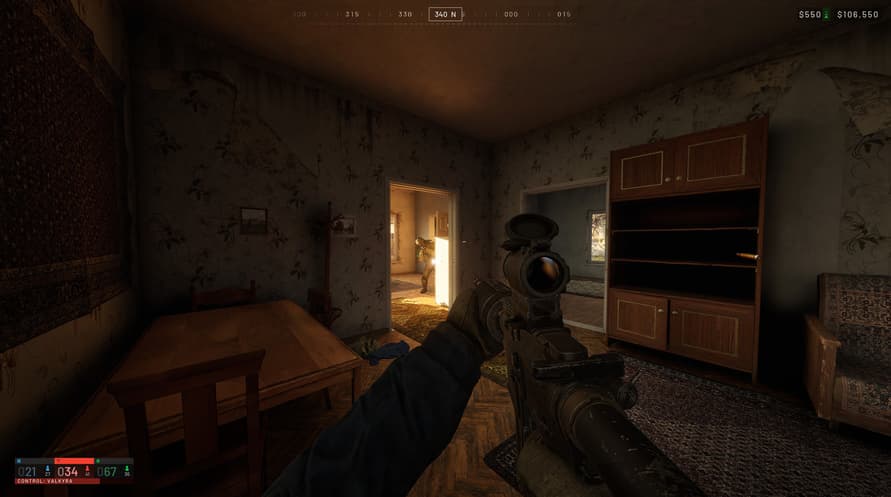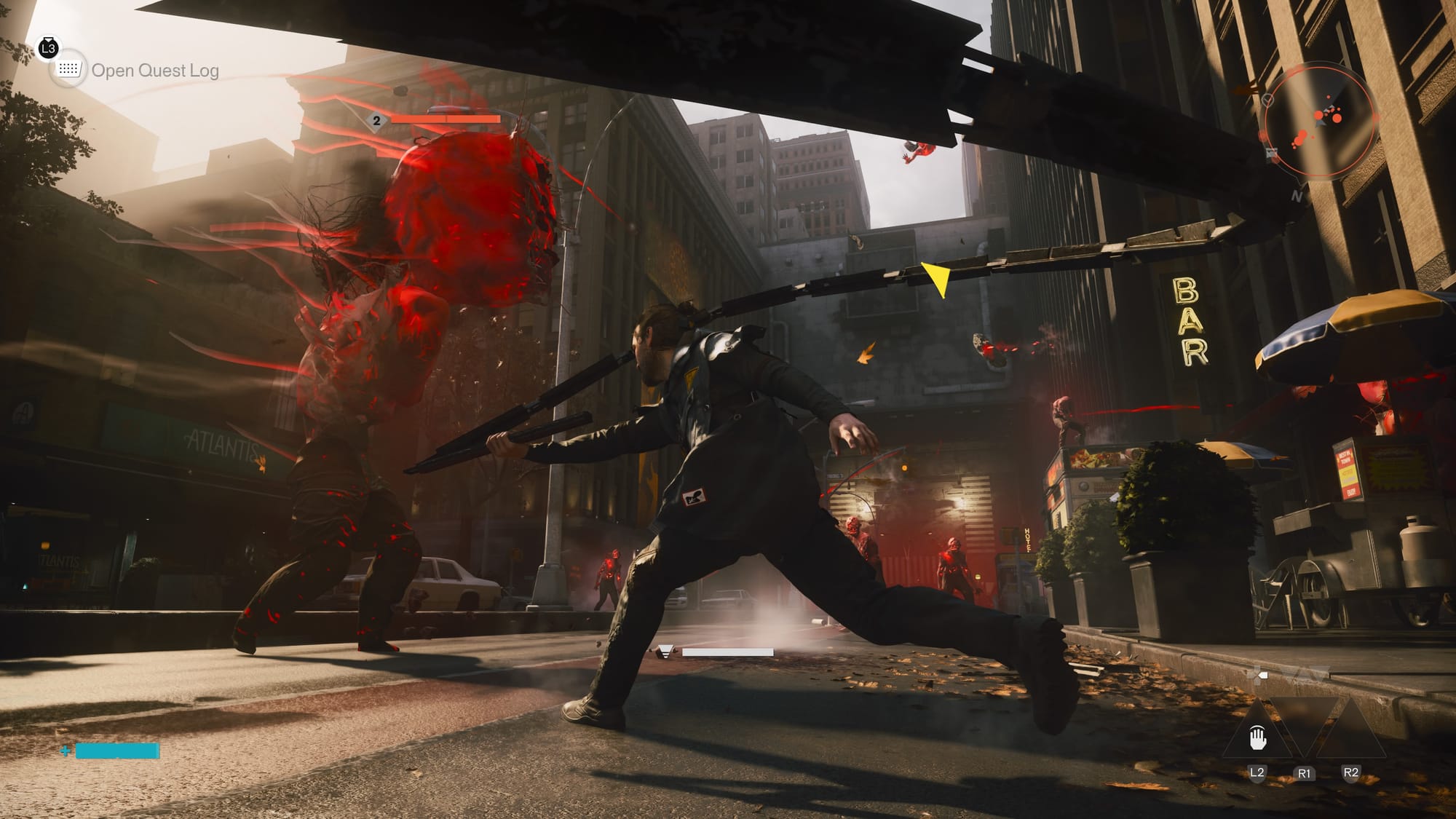
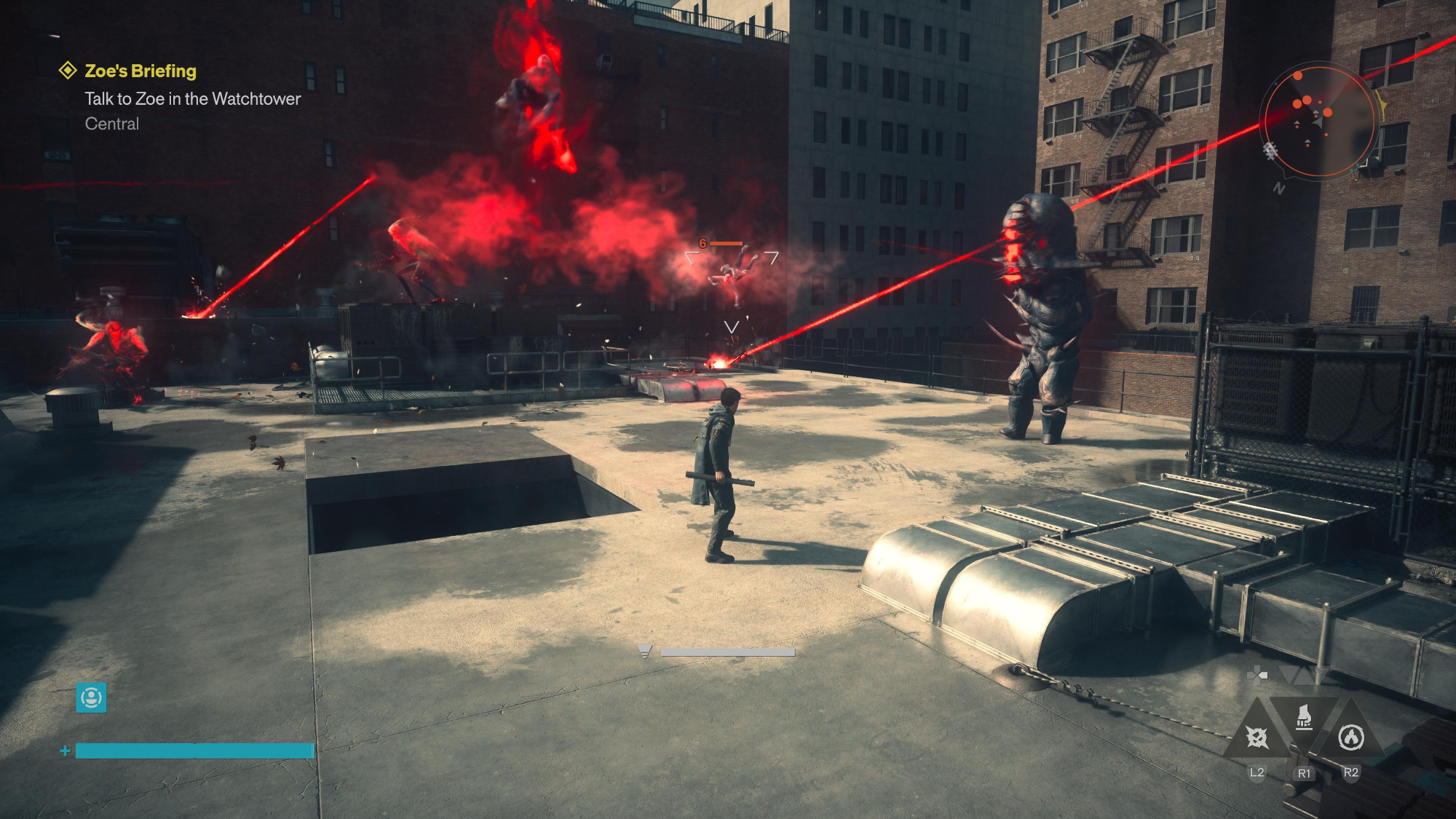
Experiencing low FPS, stuttering, or input lag in Directive 8020 can transform an immersive survival horror experience into a frustrating slideshow. Unlike crashes that stop gameplay entirely, performance issues degrade your experience gradually — making aiming feel sluggish, cutscenes choppy, and exploration unbearable. The good news is that low FPS is rarely caused by a single, unfixable problem. More often, it’s the result of incorrect graphics settings, background processes hogging resources, outdated drivers, or Windows power plans limiting your hardware. In this performance optimization guide, we’ll go beyond generic “lower your settings” advice and show you specific, actionable tweaks to boost FPS, eliminate stuttering, and reduce input lag in Directive 8020 — whether you’re running on a high-end gaming rig or a budget laptop.
1. Measure Your Baseline FPS First
Before changing any settings, you need a baseline to measure improvements.
Tools to use:
- MSI Afterburner + RivaTuner Statistics Server (free, most accurate)
- Steam built-in FPS counter (Steam → Settings → In-Game → In-game FPS counter)
- NVIDIA GeForce Experience (Alt+Z → Settings → HUD Layout → Performance)
- AMD Adrenalin (Ctrl+Shift+O)
What to record:
- Average FPS (play for 5 minutes in a demanding area)
- 1% low FPS (stuttering indicator)
- GPU usage percentage
- CPU usage per core
Write these numbers down. After each fix, compare to see what actually worked.

2. Optimize Graphics Settings (By Performance Impact)
Not all settings are equal. Some have a massive performance cost for minimal visual gain. Here’s the priority order for Directive 8020:
| Setting | Performance Impact | Recommended Value |
|---|---|---|
| Shadow Quality | Very High | Low or Medium |
| Anti-Aliasing | High | FXAA or TAA (not MSAA x8) |
| Reflection Quality | High | Low or Medium |
| Ambient Occlusion | Medium | Off or Low |
| Volumetric Fog/Clouds | Medium | Low or Disabled |
| Texture Quality | Low (VRAM dependent) | High (if 6GB+ VRAM) / Medium (if 4GB or less) |
| Post-Processing | Low | Medium or High |
| View Distance | Low-Medium | Medium (not Ultra) |
| Motion Blur | Very Low | Off (also reduces nausea) |
| VSync | Depends | Off (use in-game cap or GPU control panel instead) |
Step-by-step optimization:
- Start with Low preset → note FPS.
- Increase Texture Quality to High/Medium (little performance cost).
- Increase View Distance to Medium.
- Keep Shadows, Reflections, and Anti-Aliasing at Low/Off.
- Test after each change.
3. Enable DLSS, FSR, or XeSS (Game-Changing Boost)
If Directive 8020 supports upscaling technologies, use them immediately. They can double your FPS with minimal visual loss.
| Your GPU | Best Technology | Quality Preset |
|---|---|---|
| NVIDIA RTX 20/30/40 series | DLSS | Quality or Balanced |
| AMD RX 6000/7000 series | FSR 2.0/3.0 | Quality or Balanced |
| Intel Arc | XeSS | Quality |
| Older GPUs (GTX 10/16 series) | FSR 2.0 | Balanced or Performance |
How to enable:
- In-game Video/Graphics Settings → look for Upscaling or Super Resolution.
- Set to Quality (best visual/performance balance) or Balanced (more FPS).
- Avoid Ultra Performance unless you’re on a very weak GPU (creates blurry image).
Pro tip: If using DLSS/FSR, you can reduce render resolution slightly for even more FPS without noticeable quality loss.
4. Configure NVIDIA Control Panel for Maximum Performance (NVIDIA Users)
Even with in-game settings optimized, the NVIDIA Control Panel has hidden performance options.
Step-by-step:
- Right-click desktop → NVIDIA Control Panel → Manage 3D settings.
- Go to Program Settings tab → add Directive 8020 (or browse for the .exe).
- Set these options:
| Setting | Value |
|---|---|
| Power Management Mode | Prefer Maximum Performance |
| Texture Filtering – Quality | High Performance |
| Vertical Sync | Off |
| Low Latency Mode | On or Ultra (reduces input lag) |
| Max Frame Rate | Set to your monitor’s refresh rate (e.g., 144) |
| Threaded Optimization | On |
| Shader Cache Size | 10 GB (or Unlimited) |
Click Apply before closing.
5. Configure AMD Adrenalin for Maximum Performance (AMD Users)
For AMD Radeon GPU owners:
- Open AMD Software: Adrenalin Edition.
- Go to Gaming → Directive 8020 (or add it manually).
- Enable Radeon Anti-Lag (reduces input lag).
- Set Radeon Chill to Off (limits FPS unnecessarily).
- Set Texture Filtering Quality to Performance.
- Enable Radeon Boost (dynamic resolution during fast movement — great for FPS games).
- Power Tuning → increase Power Limit to maximum (safe, improves sustained performance).
6. Change Windows Power Plan to High Performance
Windows defaults to Balanced or Power Saver mode, which artificially limits your CPU and GPU.
- Press Windows + R → type
powercfg.cplcodecodecodecodecodecode → press Enter. - Select High performance (or Ultimate Performance if available).
- If you don’t see High Performance, click Show additional plans.
For laptops only: Also check your manufacturer’s software (e.g., Lenovo Vantage, Dell Power Manager) and set to Performance or Game Mode.
7. Cap FPS Correctly (Reduce Stuttering and Input Lag)
Uncapped FPS can cause frametime spikes (stuttering) and overheating. A stable capped FPS feels smoother than wildly fluctuating FPS.
Method 1: In-game limiter (best)
- Look for Max FPS or Frame Rate Cap in Directive 8020 settings.
- Set to your monitor’s refresh rate (e.g., 60, 144, 165).
Method 2: NVIDIA Control Panel
- Same location as above → Max Frame Rate → set to monitor refresh rate.
Method 3: RivaTuner Statistics Server (most precise)
- Install with MSI Afterburner → open RTSS.
- Set Framerate limit to your refresh rate (or 3 FPS below for GSync/FreeSync).
What if I have GSync/FreeSync?
- Enable GSync/FreeSync in GPU control panel.
- Cap FPS to 3 FPS below monitor refresh rate (e.g., 141 FPS on 144Hz monitor).
- Enable VSync in GPU control panel, disable in-game VSync.
8. Disable Hardware Acceleration in Browsers and Discord
Chrome, Edge, Firefox, and Discord use GPU resources even when minimized. This steals performance from Directive 8020.
Disable in Chrome/Edge:
- Settings → System → Turn OFF Use hardware acceleration when available.
- Restart browser.
Disable in Discord:
- User Settings → Advanced → Turn OFF Hardware Acceleration.
- Restart Discord.
Disable in Spotify:
- Settings → Advanced → Turn OFF Hardware Acceleration.
After disabling, close these apps completely while gaming (don’t just minimize).
9. Stop Windows Background Processes
Many Windows services run silently and consume CPU/disk resources.
Disable these before gaming:
- Windows Update (Settings → Windows Update → Pause updates for 1 week)
- OneDrive (right-click system tray icon → Pause syncing → 2 hours)
- Antivirus real-time scan (temporarily — see article 1)
- Windows Search indexing (Settings → Privacy & Security → Searching Windows → turn off)
Quick method: Open Task Manager → Performance tab → Open Resource Monitor → see what’s using CPU/disk → end unnecessary tasks.
10. Use Intelligent Standby List Cleaner (ISLC) – For Advanced Users
Windows has a bug where the standby memory cache isn’t cleared properly, causing stuttering in games after 30+ minutes. ISLC fixes this automatically.
What it does: Monitors and clears memory cache when it gets too full.
Download: Search “Intelligent Standby List Cleaner Wagnard” (free, safe).
Setup:
- Install and run as administrator.
- Set List size is at least to 1024 MB.
- Set Timer resolution to 0.5 ms.
- Click Start and minimize.
- Play Directive 8020 — stuttering should reduce significantly.
11. Adjust In-Game Resolution and Render Scale
If you’re still getting low FPS after all optimizations, lowering resolution is the most effective FPS booster (but also hurts image quality).
| Resolution | Performance Gain (approx) |
|---|---|
| 1080p → 900p | +20-30% FPS |
| 1080p → 720p | +40-50% FPS |
| 1440p → 1080p | +30-40% FPS |
| 4K → 1440p | +40-60% FPS |
Better alternative: Reduce Render Scale (if available in graphics settings) instead of desktop resolution. Set to 90%, 80%, or 70% — this renders internally at lower resolution but scales up, often looking cleaner than lowering display resolution.

12. Clean Shader Cache (Fix Stuttering After Updates)
Directive 8020 builds shaders in the background. A corrupted or bloated shader cache causes hitching and stuttering.
Delete DirectX shader cache:
- Settings → System → Storage → Temporary files.
- Check DirectX Shader Cache → click Remove files.
Delete NVIDIA shader cache:
- Close all games.
- Delete contents of:
C:\Users\[YourName]\AppData\Local\NVIDIA\GLCachecodecodecodecodecodecode - Also delete:
C:\Users\[YourName]\AppData\Local\NVIDIA\DXCachecodecodecodecodecodecode
Delete Steam shader cache:
- Steam → Settings → Downloads → Clear Download Cache.
- Then: Steam → Settings → Shader Pre-Caching → Uncheck → Apply → Re-check → Apply.
13. Disable Windows Game Mode and Xbox Game Bar
Ironically, Windows Game Mode can reduce performance in many games.
- Settings → Gaming → Game Mode → Turn OFF.
- Settings → Gaming → Xbox Game Bar → Turn OFF (disable completely).
- Settings → Gaming → Captures → Turn OFF background recording.
14. Overclock GPU Safely (For Advanced Users)
If you have thermal headroom, a mild overclock can boost FPS by 5-15%.
Using MSI Afterburner (works on all GPUs):
- Increase Core Clock by +50 MHz → test stability (play for 30 minutes).
- If stable, increase by another +25 MHz until crash.
- Once unstable, reduce by 25 MHz → that’s your stable OC.
- Increase Memory Clock by +200 MHz → repeat testing.
- Increase Power Limit to maximum (safe, prevents throttling).
Warning: Monitor temperatures. Keep GPU under 85°C.
15. Reinstall GPU Drivers with Clean Installation (No Bloatware)
Standard driver installations leave old files and telemetry services running.
Method:
- Download DDU (Display Driver Uninstaller) and latest GPU driver.
- Boot into Safe Mode.
- Run DDU → select GPU → Clean and restart.
- Install fresh driver → select Custom (Advanced) → check Perform a clean installation.
- For NVIDIA, uncheck “GeForce Experience” (reduces background processes).
16. Lower Mouse Polling Rate (Fix Input Lag and Stuttering)
Some gaming mice with 1000Hz or 8000Hz polling rates cause stuttering in certain game engines.
- Open your mouse software (Logitech G Hub, Razer Synapse, etc.).
- Reduce Polling Rate from 1000Hz to 500Hz or 250Hz.
- Test Directive 8020 — many users report smoother frametimes.
Performance Optimization Checklist (Quick Summary)
| Fix | Difficulty | Expected FPS Gain |
|---|---|---|
| Graphics settings optimization | Easy | +20-40% |
| Enable DLSS/FSR/XeSS | Easy | +30-60% |
| NVIDIA/AMD control panel tweaks | Medium | +5-15% |
| Windows Power Plan | Easy | +5-10% |
| Cap FPS correctly | Easy | Smoother frametimes |
| Disable hardware acceleration | Easy | +5-10% |
| ISLC (standby list cleaner) | Medium | Eliminates stuttering |
| Lower resolution/render scale | Easy | +20-50% |
| Clear shader cache | Easy | Fixes stuttering |
| Disable Game Mode/Game Bar | Easy | +0-5% |
| GPU overclock | Advanced | +5-15% |
| Lower mouse polling rate | Easy | Fixes stuttering |
Boosting Directive 8020’s FPS and eliminating lag doesn’t require a new graphics card. Start with the highest-impact fixes: optimizing in-game graphics, enabling DLSS/FSR, configuring your GPU control panel for performance, and switching to High Performance power plan. If stuttering persists after these tweaks, move to advanced solutions like ISLC, shader cache cleanup, or GPU overclocking. By systematically applying these 16 performance optimizations, you can transform a slideshow into a smooth, responsive experience — even on mid-range hardware.
What’s your current GPU and target FPS? Share in the comments for personalized advice!